v2.7 (latest)
Debugging your Ruleset
This guide explains how to debug a ruleset when you need to investigate complex or unexpected behavior in your ruleset.
Use Explain to inspect calculation steps
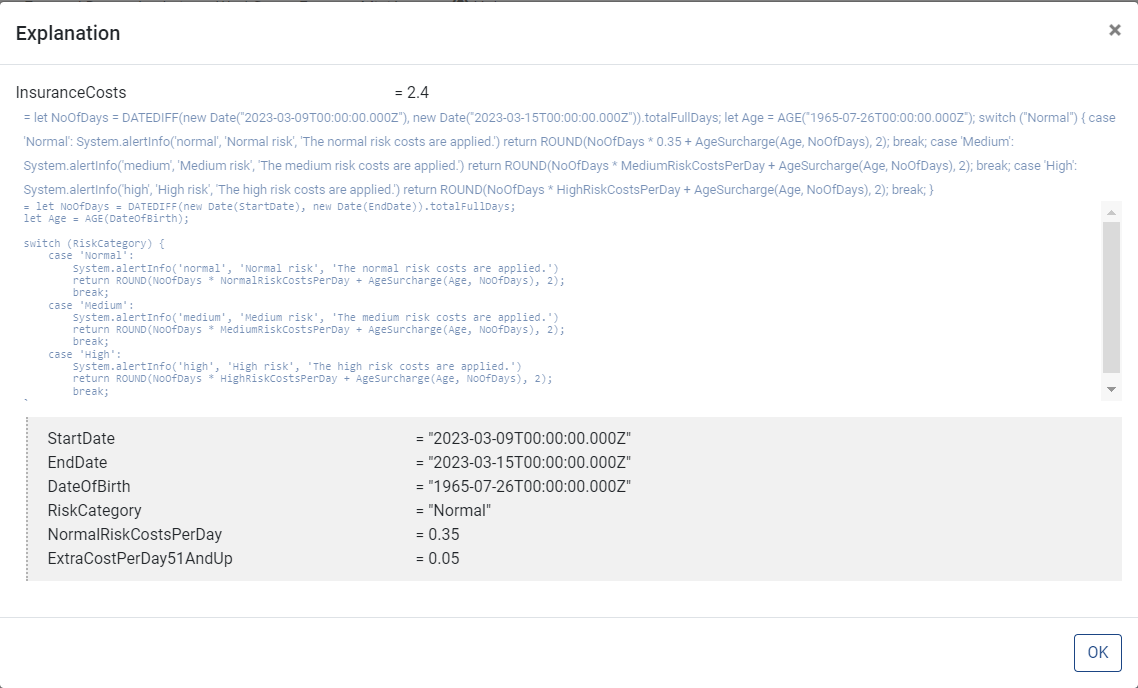
When a ruleset returns an unexpected result, the Explain option in the Sandbox lets you inspect exactly what happened during execution - step by step, per rule.
- Open the ruleset you want to debug.
- Click Try it out!
↳ The Sandbox page opens. - Enter the input values you want to inspect.
- Select the Explain checkbox.
- Click ▸ Execute.
↳ Rulecube executes the ruleset and shows an Explain button in the Results section. - Click Explain.
↳ The Explanation pop-up opens, showing each rule with its input, output, and the code that was executed. - Identify which rule returns an unexpected value.
- Close the pop-up and navigate to that rule to fix the issue.
- Save the rule and click ▸ Execute again to verify the fix.
Use console.log to inspect values
If you're familiar with JavaScript, you may know console.log, which is commonly used to inspect values while debugging.
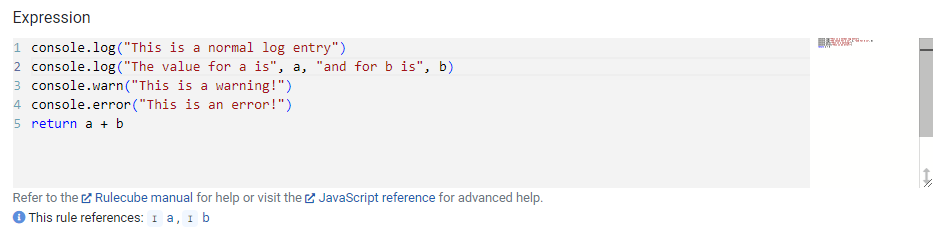
Rulecube offers a similar API! You can use console.log(), console.warn() and console.error() anywhere in your Ruleset code.
Example
Sandbox
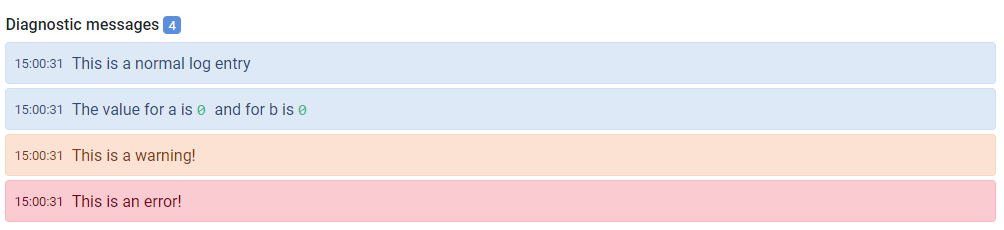
The Sandbox offers a visualization of your Console logging below the actual result after executing.
What happens to my logs?
Your logs are returned in the execution result of the API. They are not stored on any server. The amount of log lines is also capped at a certain limit. The default is a maximum of 100 lines. This means only the last 100 lines are returned.
API call
By default, no logging is returned in the ruleset execution result. This can be changed by setting the execution options.logLevel to 'info', 'warning' or 'error'. See a Ruleset's Swagger UI page for more info (at the bottom of its Version settings).
- 'info' - every log will be returned
- 'warning' - only warnings and errors (console.warn() and console.error())
- 'error' - only errors (console.error())
The API result from an execute will contain your logging in the diagnostics property. This is an array with the following object structure:
| Field | Type | Description |
|---|---|---|
| t | number | Timestamp represented as number of milliseconds after 1970-01-01 |
| type | string | "log", "warn" or "error" |
| arguments | any[] | An array of the parameters you passed to console.log() / .warn() or .error() |