v2.7 (latest)
Workflows
In a workflow, you have a sequence of steps, and you can affect the step execution and interact with a step during processing. For instance, a workflow can choose which steps to execute. Or wait until it receives an answer or response to proceed. Like in this workflow:
- Start a workflow by calling it via its API as you do with rulesets.
- The workflow executes its steps until it encounters a wait step.
- The workflow suspends itself.
- When you or your program interacting with the workflow are ready, you send an answer or response to the workflow via its API.
- The workflow resumes and proceeds its remaining steps according to your answer.
- The workflow reaches the end and finishes.
And a practical example could be a loan application workflow that sends an email to an assessor when the requested loan exceeds a certain amount to accept or reject the loan. This workflow waits until the assessor responds, then finishes processing.
In Rulecube, a workflow combines a couple of concepts:
- Data and Business rules: the basis of every Rulecube ruleset
- Process: containing all workflow steps
- Documents: handled and/or produced by the workflow steps
- Stakeholders: the people handling the workflow
The workflow editor
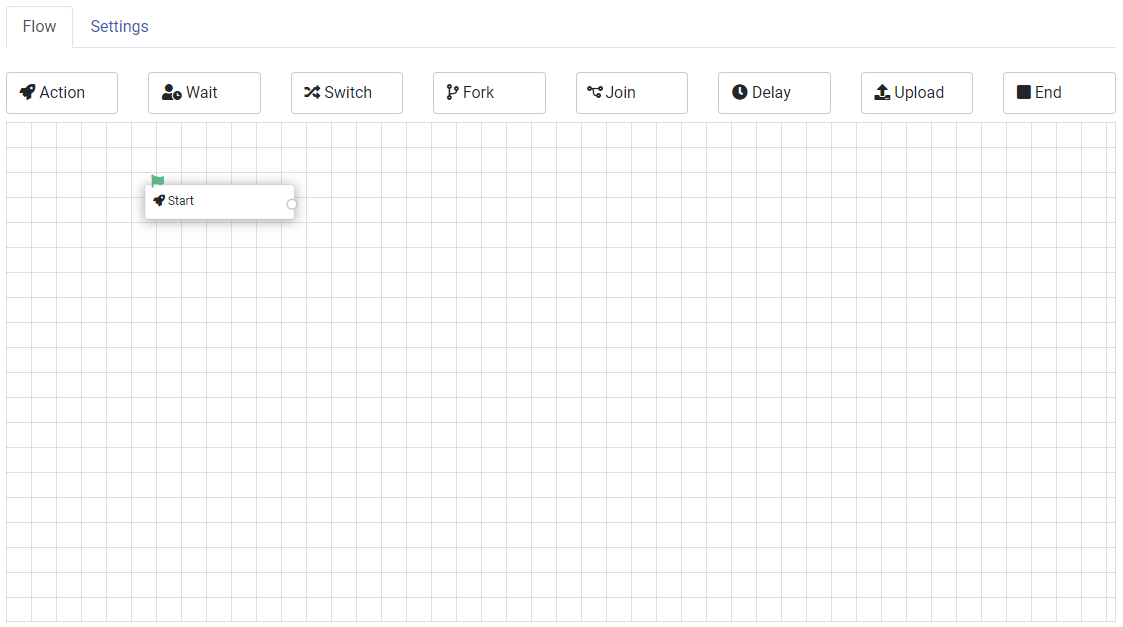
The workflow editor is a drag-and-drop editor. You can drag steps from the top of the screen and drop them on the workflow canvas. You can also drag steps around the canvas to rearrange them.
Deleting a step is easy by clicking it and pressing the Delete button. You can connect steps by dragging from the small circle on the right or bottom side of a step to the small circle on the left or top side of another step. It is also possible to connect a step by choosing one of the steps from the dropdown that appears when you click on a step. The line between the steps will be drawn automatically.
Workflow settings
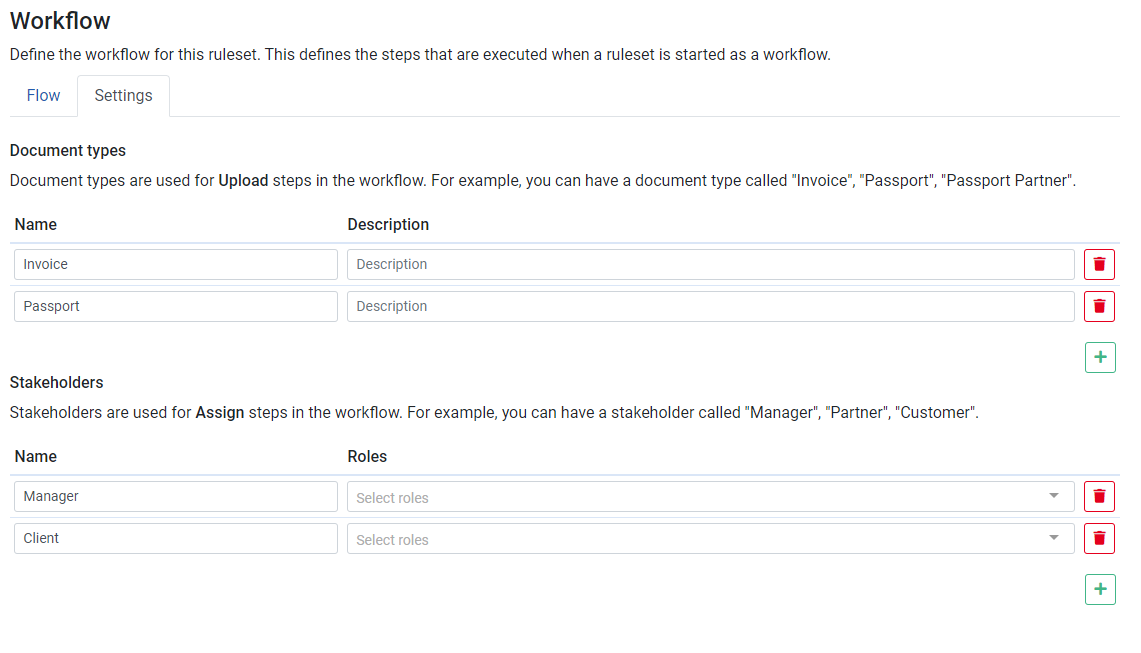
In the workflow settings screen, we can define Document types and Stakeholders.
Document types
The 'document types' list is a list of documents the workflow handles or produces. A workflow can only handle documents if their type is defined in this list. Each document type has a name and a description.
Stakeholders
The 'stakeholders' are the user groups with a certain role in the workflow. For example, the 'Client' stakeholder is the user group that represents the client in the workflow. The stakeholders are used to assign tasks to users in the workflow. The stakeholders are also used to determine the visibility of (part of) the workflow in the UI. You can assign tasks to the stakeholders by adding a task to a Wait step by checking the 'Create task' checkbox.
Each stakeholder has a name (you can choose any name you want, as long as it is unique for every stakeholder group) and a property called 'Roles,' in which you can select application roles. When a user has one or more of the roles selected here, he is a stakeholder group member.
Workflow state
If you create a workflow, Rulecube automatically creates an state input and an State entity for workflow control. This state object is accessible in all workflow steps and can have as many properties as you need to control workflow execution or show progress.
For example, you can have a status property that holds the different statuses for each phase in the loan application workflow, such as:
newunder reviewon haltacceptedrejected
Workflow steps
A workflow comprises connected steps that execute from the Start to the End steps. You build a workflow by dragging, connecting, and defining steps on the Workflow canvas:
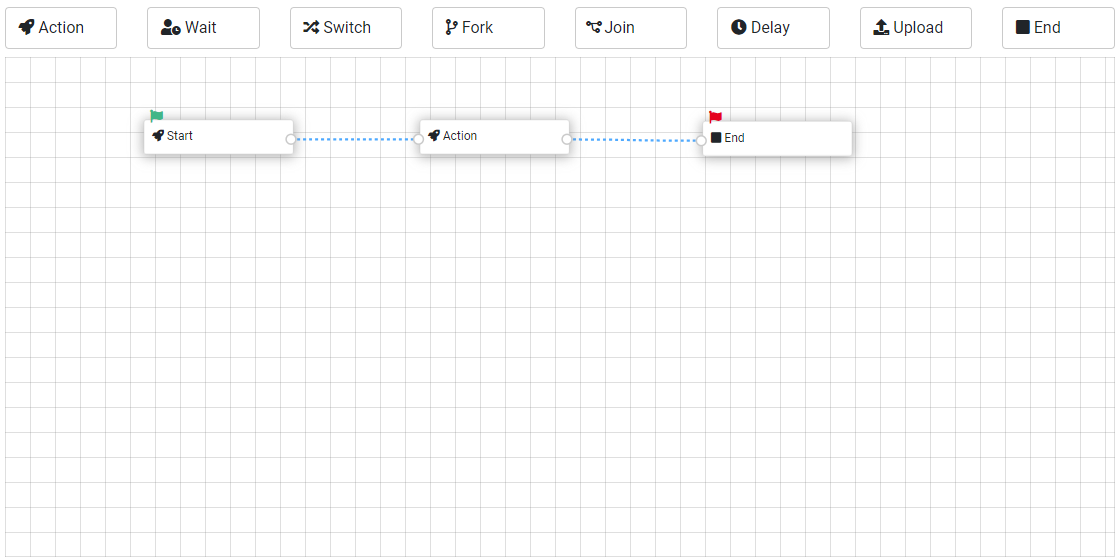
And these are the available steps:

This step is added by default and is a good place to initialize your workflow and theStateobject.
A processing step that executes a calculation, fetches data from an external API, modifies theStateobject, or performs any other command that you execute in regular rules.
This step waits until it receives a response.
Based on a condition, this step selects which step or steps should be performed next.
This step splits execution into branches that are executed in parallel.
This step brings forked branches back together for further processing.
This step waits for a specific amount of time before continuing to the next step.
An Upload step is a step that waits for a file to upload to the server.
This is the place where you finish the workflow and set the final outcome.