v2.7 (latest)
Create a Subform
This guide will teach you how to use Subforms to create reusable components in your Forms.
If you're not yet familiar with Forms, please read Introduction and Form structure.
A Subform is identical in structure to a page — it has sections and elements — but it is designed to be reused across your form. Subforms are especially useful when you have repeating structures, such as a list of items with multiple fields, or a shared layout that appears on multiple pages.
You can embed a Subform in a page in two ways:
- Table element — renders the subform as a repeating row in a table
- Subform element — renders the subform inline in the page
Setting up the Ruleset
Creating the Ruleset and inputs
- Create a new Ruleset named
Order Form - Add an input named
orderLinesof typearray - Each order line should have two fields:
product(string) andquantity(number) - Add a rule
totalItemsthat calculates the total number of items across all order lines- In the Expression editor, enter:
orderLines.sum(line => line.quantity)
This uses the built-insum()function to loop over each order line and add up allquantityvalues.
- In the Expression editor, enter:
- Click Save.
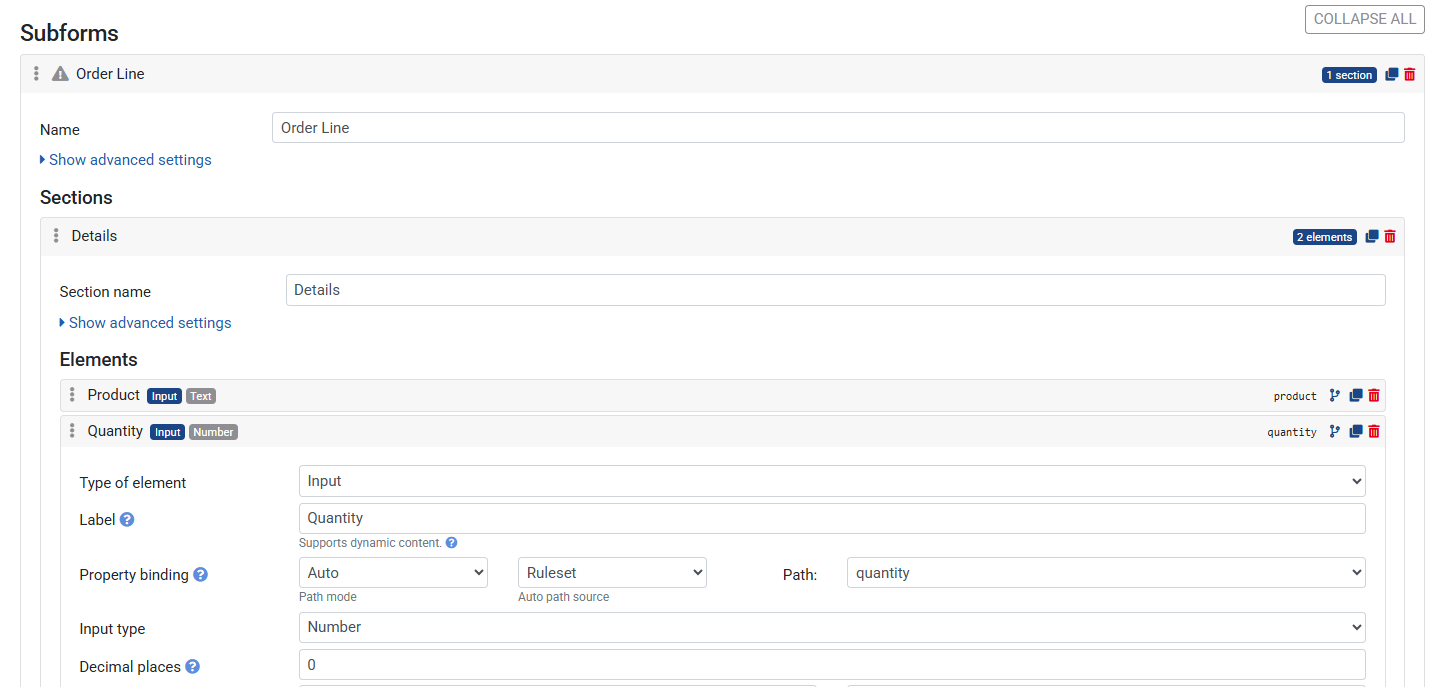
Creating the Subform
- Open the Form (or create a new one via + next to Forms)
- Go to the Subforms tab
- Click + to add a new Subform and name it
Order Line - Open the Subform and add a section named
Details - Add the following elements to the section:
- Input > Text — Label:
Product, Path:product - Input > Number — Label:
Quantity, Path:quantity
- Input > Text — Label:
- Save the Ruleset
Adding the Subform to a Page
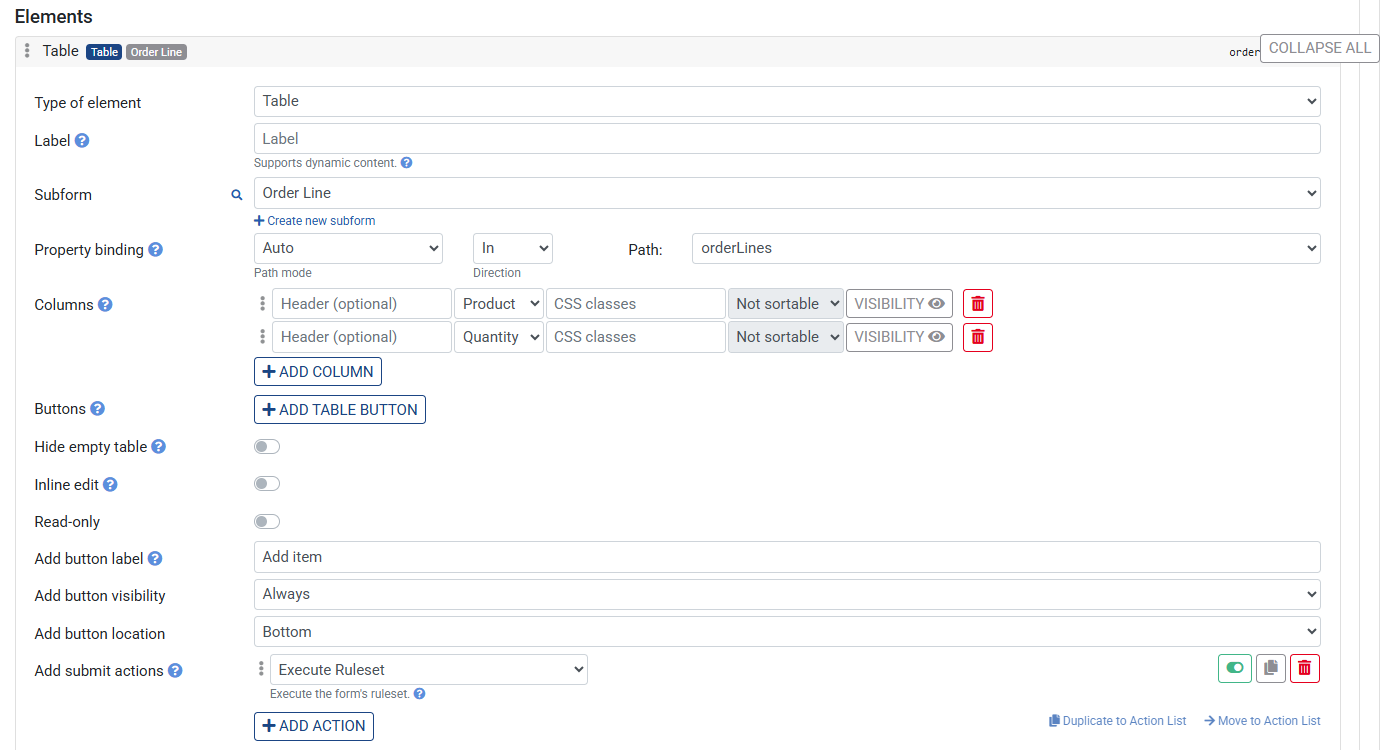
- Open the first page and add a section named
Order Lines - Inside the section, click Add element → Table
- Under Subform, select
Order Line - Set Property binding → Path:
orderLines - Click Add Column, add Product and Quantity
- Add button label, Add item
- Add submit actions, select
Execute Ruleset
- Under Subform, select
Add the element for the output:
- Add a second section named
Summary - Add an Output > Number element — Label:
Total items, Path:totalItems - Save the Ruleset
Previewing the Form
- Click the Preview button in the top right corner
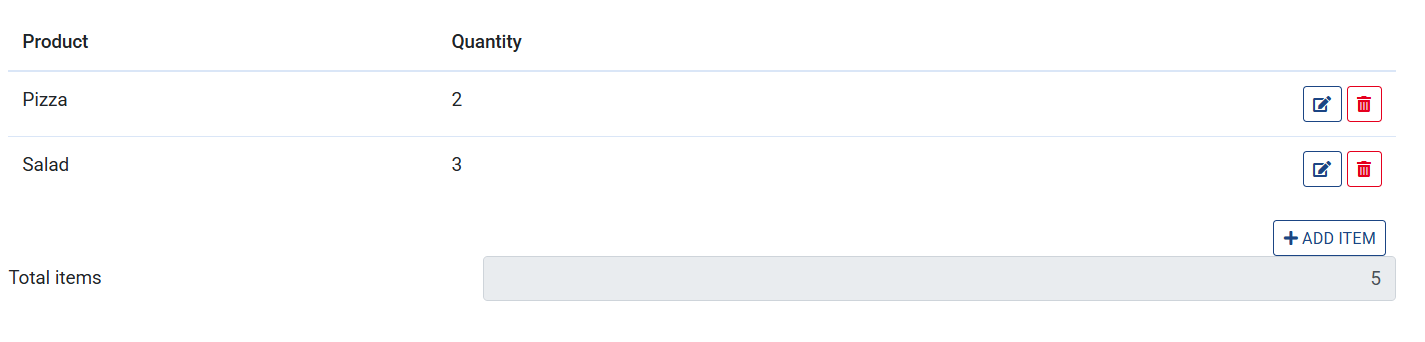
You should now see a table with an + Add item button that allows you to add order lines. Each row uses the Order Line subform. The Total items output updates after executing the ruleset.
Using the Subform element
The Subform element renders a subform inline on a page — as a single, fixed instance. Use this when you want to display or edit one structured object, rather than a repeating list.
In the Order Form example, we used the Table element to display a list of order lines. We can extend the same form to also show a shipping address — a single structured object that fits perfectly as a Subform element.
Extending the Ruleset
Open the
Order FormrulesetAdd the following inputs:
shippingStreet(string)shippingCity(string)shippingPostalCode(string)
Add a rule named
fullShippingAddressthat combines the fields:shippingPostalCode + " " + shippingCity + ", " + shippingStreet↳ This produces a formatted address string such as
"1234 AB Amsterdam, Main Street 1"Click Save
Creating the Address Subform
- Go to the Subforms tab in your form
- Click + and name it
Shipping Address - Open the subform and add a section named
Address - Add the following elements:
- Input > Text — Label:
Street, Path:shippingStreet - Input > Text — Label:
City, Path:shippingCity - Input > Text — Label:
Postal Code, Path:shippingPostalCode, On change actions:Execute Ruleset - Output > Text — Label:
Full address, Path:fullShippingAddress
- Input > Text — Label:
- Click Save
Adding the Subform element to the page
- Open the first page of the form
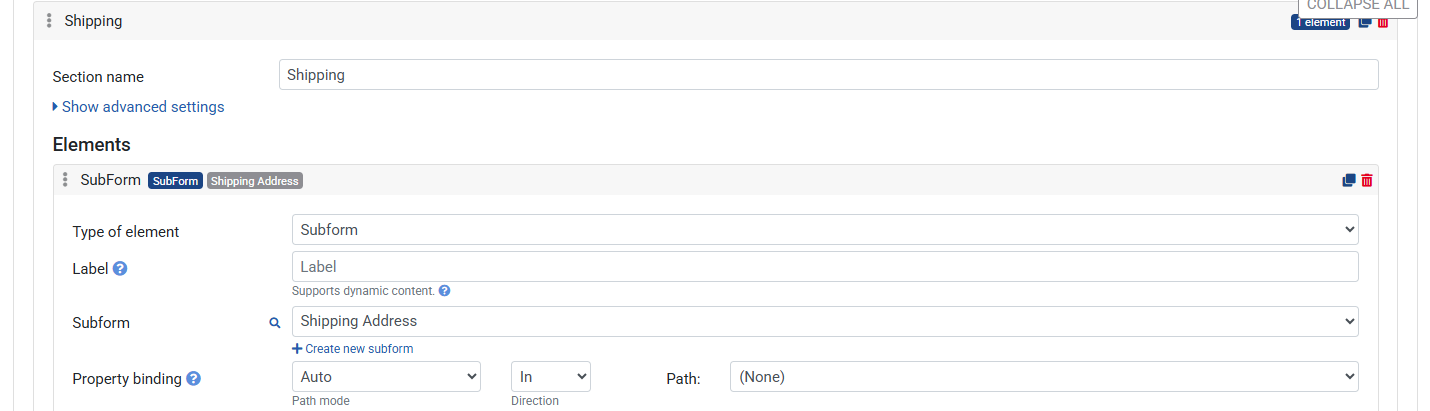
- Add a new section named
Shipping - Inside the section, click Add element → Subform
- Under Subform, select
Shipping Address
↳ The subform renders inline — no property binding or columns needed, unlike the Table element - Click Save
Previewing the Form
- Click the Preview button in the top right corner
Fill in the address fields — the Full address output updates immediately
Tips
- A Subform can be reused on multiple pages in the same form — define it once, embed it anywhere.
- Use the Subform element (instead of Table) when you want to show a single instance of the subform inline, rather than a list.
- Sections inside a Subform support the same conditional visibility and layout width settings as page sections.
- You can nest elements freely inside a Subform, including Alerts, Buttons, and Outputs.