v2.7 (latest)
Configure PDF settings
This guide explains how to configure the PDF settings that control how the form looks when rendered as a PDF (via PDF.renderForm()). They configure the paper layout, margins, and custom header/footer HTML.
| Setting | Description | Default |
|---|---|---|
| Format | Paper size | A4 |
| Landscape | Portrait or landscape orientation | Portrait (off) |
| Scale | Zoom level of the rendered page (0.1–2) | 1 |
| Margin top / right / bottom / left | Page margins (numbers or CSS units like 1cm, 10px) | 30 / 35 / 70 / 25 |
| Header template | HTML for the page header (printed on every page) | — |
| Footer template | HTML for the page footer (printed on every page) | — |
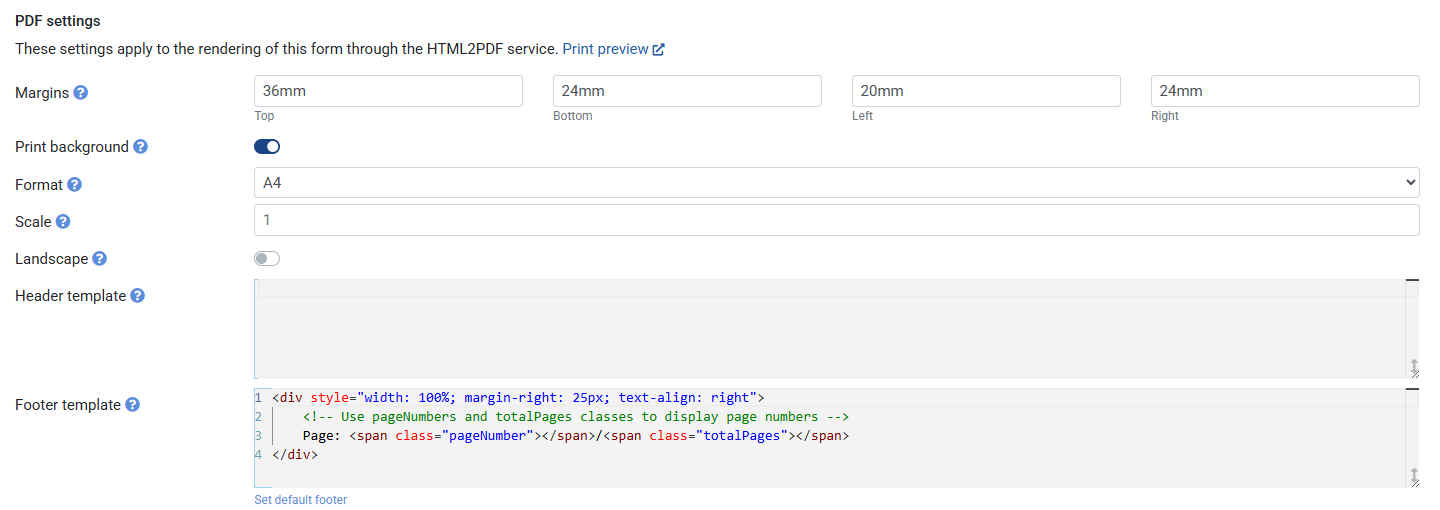
Header and footer templates
Header and footer templates are HTML strings. Use the following CSS classes to inject dynamic print values:
| Class | Value injected |
|---|---|
date | Formatted print date |
title | Document title |
url | Document URL |
pageNumber | Current page number |
totalPages | Total number of pages |
Create a PDF:
- Go to tab Settings
- Click on
Set default footerunder Footer template (default code for page number appears) - Go to tab Definition
- Click on the + Element button and add an element of type Header
- Set its Label to
Print - Click on the + Element button and add an element of type Button
- Set its Label to
PDF - On click actions: select
Print form to PDFand select thecurrent form
- Set its Label to
- Save the Ruleset
- Click on Preview
- Click on the PDF button