v2.7 (latest)
Invite other Users to Rulecube
This guide explains how to invite other users to your Rulecube tenant. This enables the joint development of rulesets with your colleagues.
Before you begin
- You need to have the
TenantAdminrole to invite other users. - Determine what role(s) you want to assign to the invitee. See this authorization topic for more information about available roles.
Invite a user
Click your tenant name in the menu bar.
↳ The Profile page opens with the Users section:
Click Invite user.
↳ The Invite user pop-up opens: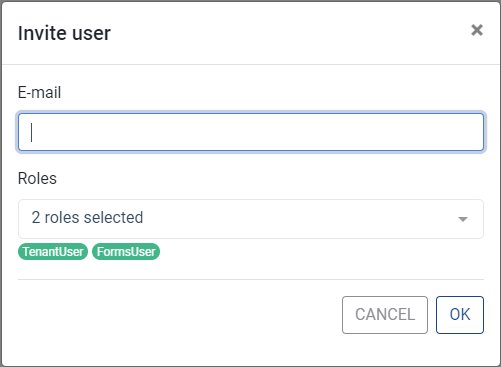
Note that the rolesTenantUserandFormsUserare pre-selected for the invitee.In the E-mail field, enter the invitee's e-mail address.
If you want to add a role, in the Roles list, select the role—the row turns green—and press
Enter.If you want to remove a role, in the Roles list, select the role—the row turns red—and press
Enter.When finished, click OK.
↳ Rulecube sends an invitation e-mail to the invitee, and a new row for the invitee is added to the Users section.Optionally, notify the invitee to activate the Rulecube account from the mail.