v2.7 (latest)
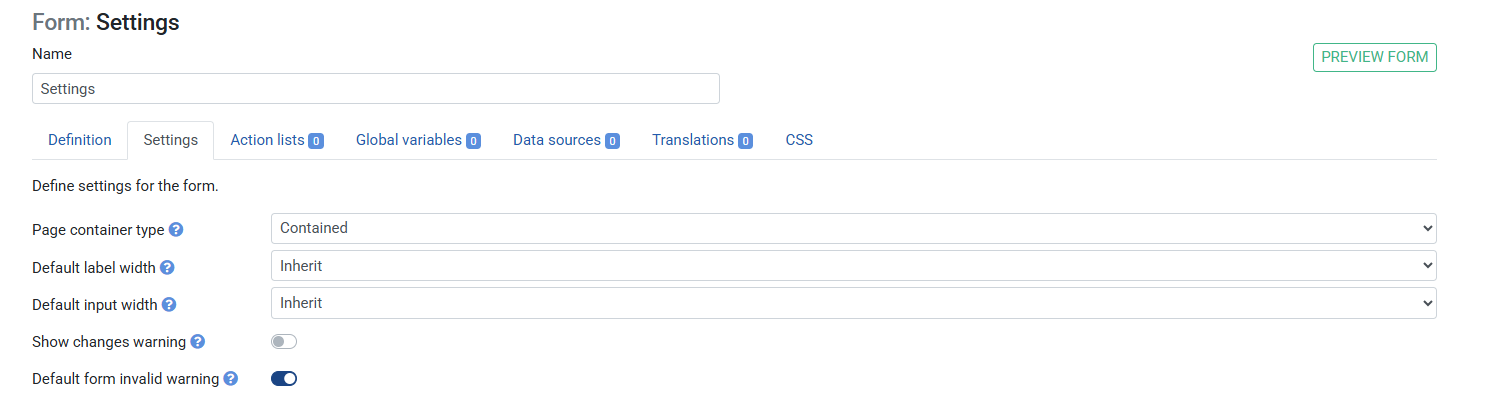
Configure the page container type
This guide explains how to control the layout width of your form using the page container type setting.
- Contained (default) — wraps the form in a centred container with a maximum width. Suitable for most forms.
- Full width — the form stretches to fill the entire browser window. Useful for forms with wide tables or charts.
Steps:
- Add a new Form to the Ruleset
- Go to tab Settings
- Under Page container type, select
ContainedorFull width - Save the Ruleset
- Click Preview at the top to see the difference between Contained and Full width
Show changes warning (dirty flag)
When this setting is enabled, the form tracks whether the user has made any changes since the form loaded or was last saved. This is called the dirty flag.
If the user tries to navigate away or close the tab while the dirty flag is set, they will see a browser warning: "Leave site? Changes you made may not be saved."
How to enable:
- Go to tab Settings
- Toggle Show changes warning on
- Save the Ruleset
Resetting the dirty flag
After a successful save or submit action, you typically want to clear the dirty flag so the user is no longer warned. Use the Remove form dirty flag action for this.
- Go to the tab Definition
- Add a Button element with label
Save - Under On click actions, add
Execute ruleset(to save data) - Add a second action:
Remove form dirty flag - Save the Ruleset
Now, after the user clicks Save and the ruleset executes, the dirty flag is cleared and the warning will not appear until they make further changes.