v2.6
Using Workflows
Introduction
So far, you've built rulesets, modeled data with entities, integrated your ruleset into a web page, and built a form-based UI. All of these are great for processing a single request and returning a result immediately.
But what if a process takes more time — for example, when a loan application needs manual review by an assessor before it can be approved or rejected? That's where Workflows come in.
A workflow is a ruleset that can pause, wait for input, and resume later. Instead of returning a result in one go, a workflow moves through steps — like stages in a real-world business process.
By the end of this tutorial, you'll know:
- What a workflow is and when to use one.
- How to turn a ruleset into a workflow.
- How to build a multi-step process with branching logic.
- How to use signals to continue a paused workflow.
What you'll build
You'll build a LoanAssessment workflow for the loan application scenario you've been working with throughout these tutorials. The workflow will:
- Automatically accept loans of €100,000 or less.
- Put loans above €100,000 under review, waiting for an assessor to accept or reject them.
Enable and create workflow
Step 1: Create the basic workflow
Create a new ruleset named
LoanAssessment.Select Version settings from the left-side menu.
Select the Workflow checkbox.
↳ Rulecube turns the ruleset into a workflow and adds the Workflow option to the left-hand menu, and creates thestateinput and theStateentity: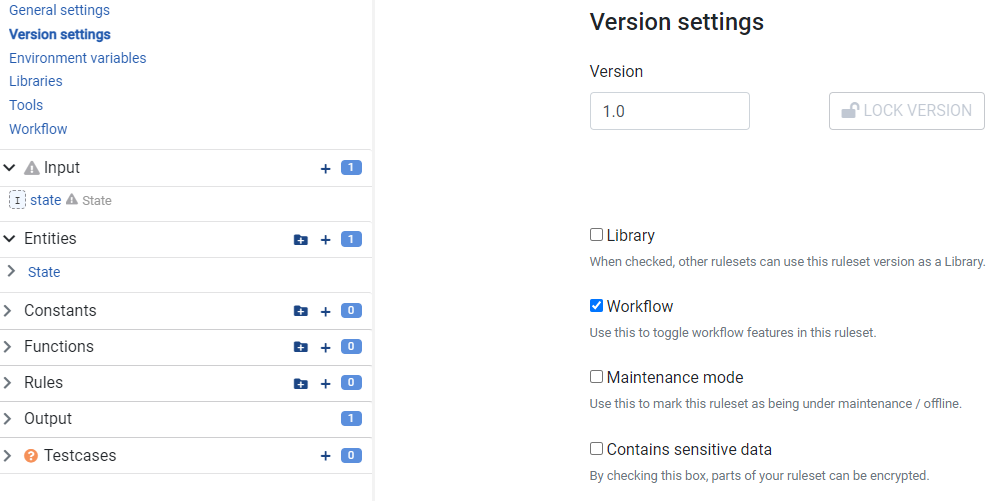
Create an input named
LoanAmount- Set its Type to
number - Check the "Add to state" checkbox.
- Set its Type to
Select the State entity and click Add property.
In the Name field, enter
Status.In the Type list, select string.
In the Default value (optional) field, enter
new.Click Save.
Step 2: Add steps to the workflow
Select Workflow from the left-side menu.
↳ Rulecube shows the Workflow canvas where you create the workflow by dragging en connecting steps.Drag a
 step to canvas.
↳ Rulecube gives the step a default name.Select the Switch step.
↳ The Switch details section opens:\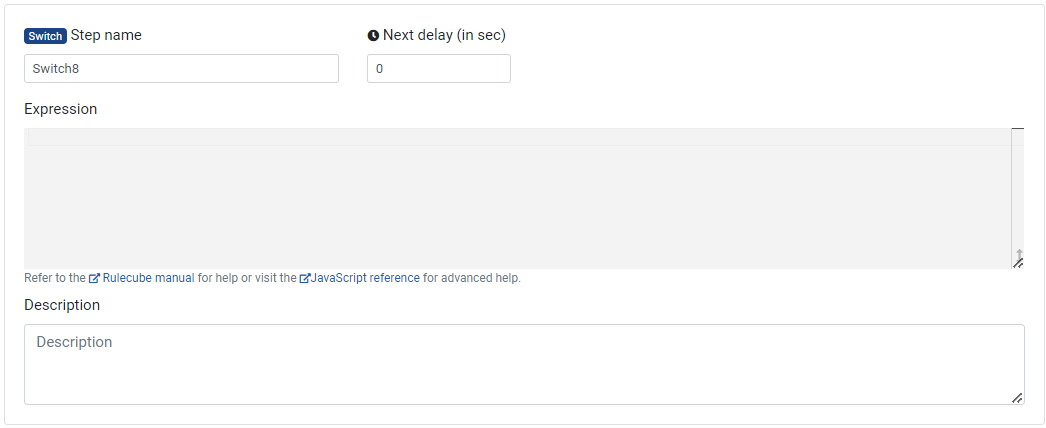
In the Step name field, enter
Assessment check.In the Description field, enter
Requested loan amount larger than 100,000?Connect the Start step to the Assessment check step by clicking on the little circle in the Start step, holding your mouse, and dropping on the left circle of the Assessment check step.
↳ Rulecube adds a dotted blue line between the steps to indicate that they are connected: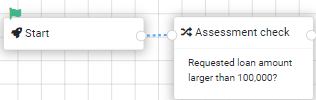
Drag an
 step to the canvas and set Step name =
 Assessmentand Description =Accept or reject.Drag another
step to the canvas and set Step name = Accept.Connect the Assessment check step to the Assessment step.
↳ Rulecube asks for a name for the connection, entertrue, and click OK.Connect the Assessment check step to the Accept step.
↳ Rulecube asks for a name for the connection, enterfalse, and click OK. And now, the Assessment check (switch) step has proceedings for whether its condition is true or false.Drag a
 step to the canvas and set Step name =
 Wait.Connect the Assessment step to the Wait step.
Drag an
step to the canvas and set Step name = Reject.Connect the Wait step to the Accept step and name the connection
Accept.Connect the Wait step to the Reject step and name the connection
Reject.Drag an
 step to the canvas.
Connect the Accept step and the Reject step to the End step.
↳ Maybe you have to rearrange the steps, but your workflow canvas should look like this: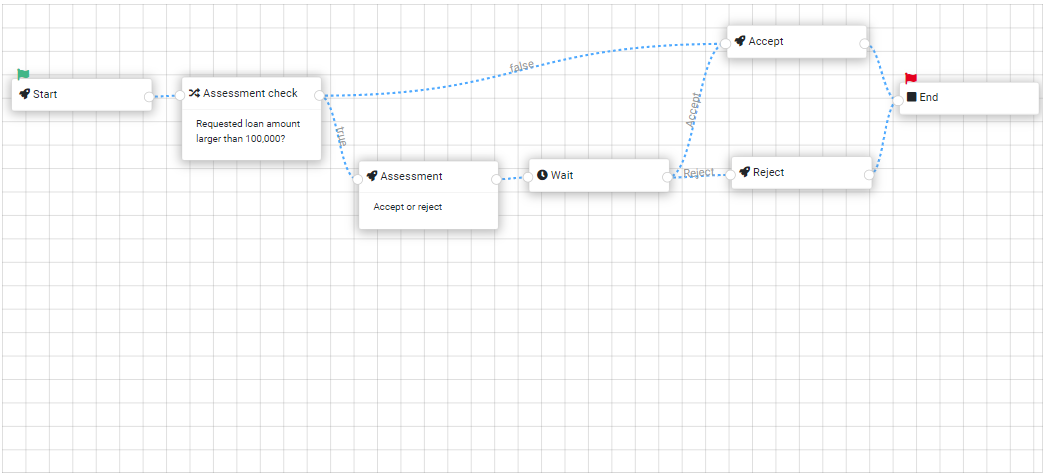
Save the workflow.
Step 3: Add processing to the steps
Select the Start step and set its Expression to the following code:
javascriptstate.LoanAmount = LoanAmount; return;Explanation
This initializes the workflow by addressing the value of theLoanAmountinput to theLoanAmountproperty of thestateobject, which makes theLoanAmountinput value available in the workflow.Select the Assessment check step and set its Expression to the following code:
javascriptreturn state.LoanAmount > 100000;Explanation
This code checks whether the loan amount is larger than 100,000 and results in either true or false.Select the Assessment step and set its Expression to the following code:
javascriptstate.Status = "under review"; Workflow.createNextSignalUrl("Accept"); Workflow.createNextSignalUrl("Reject"); return;Explanation
This code sets the status and creates the possible answers or responses (signals) for the assessor.Select the Accept step and set its Expression to the following code:
javascriptstate.Status = "accepted";Select the Reject step and set its Expression to the following code:
javascriptstate.Status = "rejected";Save your workflow.
Summary
Let's summarize the workflow processing to be sure that things are clear:
- The workflow starts with addressing the loan amount to the
stateobject for later reference. - Then, the workflow checks whether the loan amount is larger than 100,000.
- If the loan amount is less than or equal to 100,000, the loan is accepted, and the workflow finishes.
- If the loan amount is larger than 100,000:
- The workflow creates responses for the assessor.
- Then waits for the response.
- If the assessor accepts the loan, the acceptance is processed, and the workflow finishes.
- If the assessor rejects the loan, the rejection is processed, and the workflow finishes.
- The workflow ends, and the
stateobject now holds the final data.
Step 4: Try out the workflow
Click Try it out!
↳ The Sandbox page opens and now also has a Start workflow button.In the LoanAmount field, enter
100000.Click Start workflow.
↳ The workflow runs, and the Result section shows the State object and the execution Log: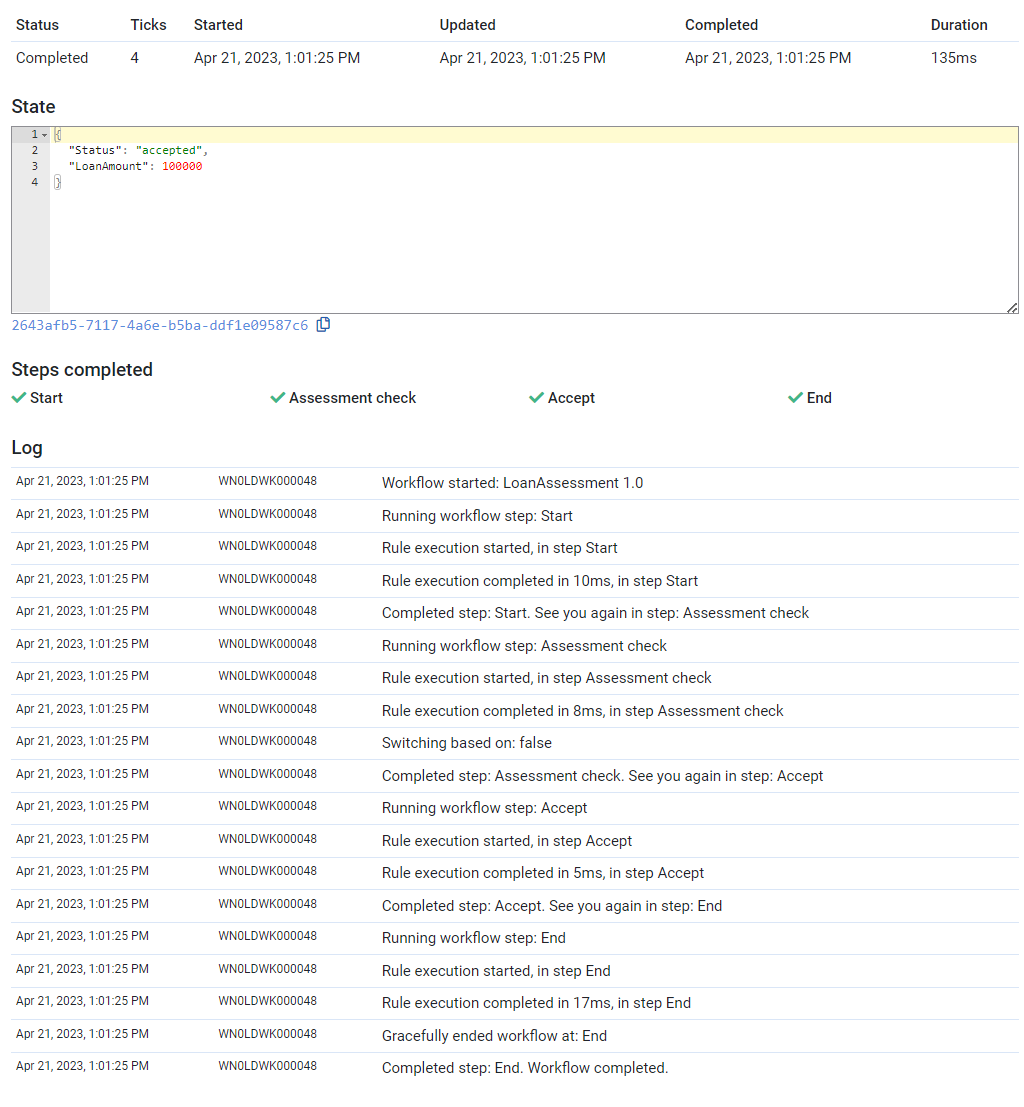
Because the loan amount was equal to 100,000, the loan was accepted as shown by the value of
State.Status.Now change the LoanAmount input to
100001.Click Restart.
↳ The workflow starts but suspends itself after a while as an indication that it is waiting:
And in the Log, you'll see the available signals (responses) for the assessor:
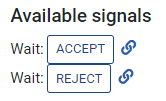
Furthermore, the
Stateobject indicates that theStatusisunder review.Click Reject.
↳ The workflow resumes, rejects the loan, and finishes: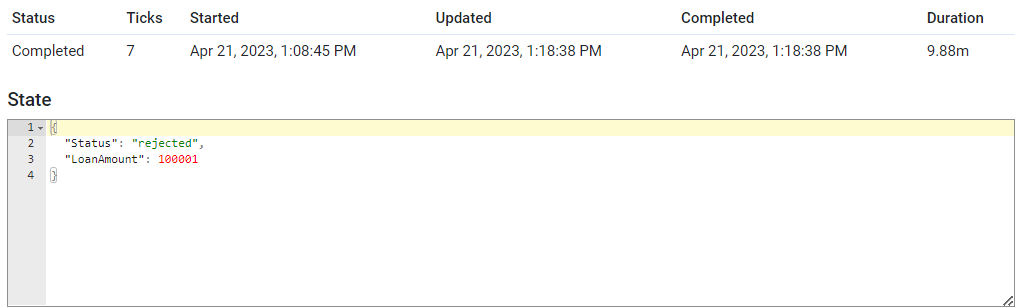
Restart the workflow again, and this time, select the Accept signal from the Log to execute the acceptance route for the assessor.
Recap
- You enabled the Workflow option on a ruleset to turn it into a multi-step process.
- You built a canvas with Switch, Action, Wait, and End steps to model the loan assessment flow.
- You used
stateto carry data across steps. - You used
Workflow.createNextSignalUrl()to pause the workflow and wait for an external response. - You tested both the automatic and the manual-review routes in the Sandbox.
What's next?
You've completed the Rulecube tutorial. The tutorial covers the essentials, but Rulecube has a lot more to offer.
See the next page where to go from here.