v2.6
Using Translations
Introduction
Translations let you build multilingual forms without duplicating your form structure. You define a set of key/value pairs per culture, and Rulecube automatically substitutes the correct text based on the active culture when the form is rendered.
How it works
- Every element Label in a form doubles as a translation key
- When a culture is active, Rulecube looks up the label text in the translation table for that culture
- If no translation is found, the original label text is used as a fallback
Adding translations
- Open your form in the editor
- Go to the Translations tab
- Click + Add Language
- A matrix view opens — rows are translation keys, columns are cultures
- Enter the translated value for each key in the relevant culture column
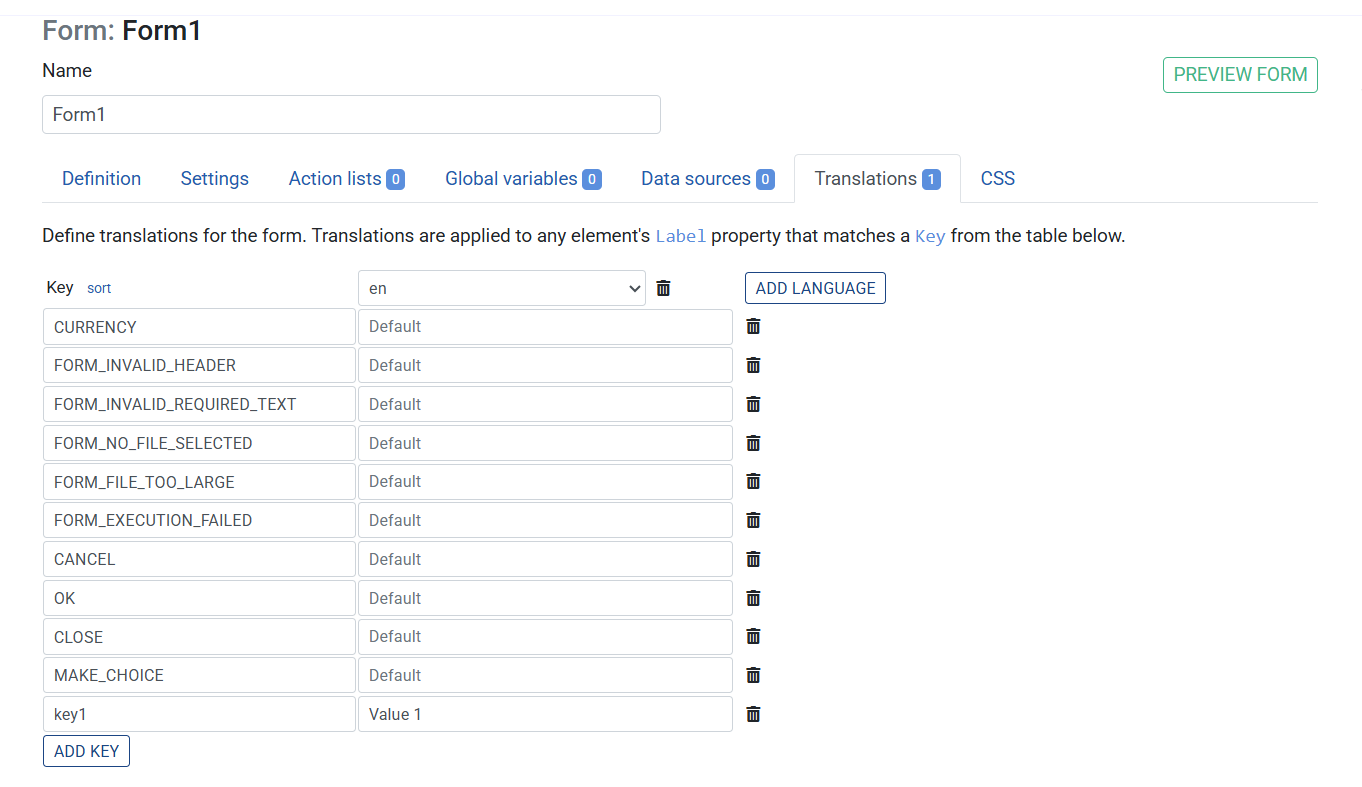
Tip: Leave the default (English) column blank — Rulecube uses the label text itself as the English value.
Two approaches to keys
Approach 1 — Use natural labels as keys (simple)
Set element labels to plain text, e.g. First name. Then add a translation row with the same key and provide the Dutch value Voornaam.
- Pro: Simple and readable in the editor
- Con: Renaming a label breaks the translation link (key and label must stay in sync)
Approach 2 — Use generic keys (recommended for larger forms)
Set element labels to uppercase identifiers, e.g. FIRST_NAME. Then provide translations for all cultures, including English (First name) and Dutch (Voornaam).
- Pro: Renaming the displayed text only requires updating the translation table, not the element label
- Con: Labels look technical in the form editor
Example
- Add a new Form to the Ruleset
- Go to the tab Translations
- Click + Add Language, a table appears
- Click + Add Language and select
nl-NL - Add a new Key with:
- Key: First input
- en: (empty — uses label)
- nl-NL: Eerste invoer
- Go to the tab Definition
- Create a new Input
- Label:
First input - Property binding:
Manual, Path:a
- Label:
- Save the Ruleset
Previewing the Form
- Click the Preview button in the top right corner

When clicking on the nl-NL culture, the label renders as Eerste invoer.

Switching cultures
The active culture is determined by the context in which the form is embedded (e.g. the browser language or a workspace setting). You do not need to add any logic to the form itself — Rulecube handles the lookup automatically.
Tips
- Translations apply to labels only — dynamic content (e.g. values returned by a ruleset) must be translated in the ruleset itself if needed
- The matrix view is the easiest way to manage translations across many cultures at once
- Unused translation keys (keys with no matching label) are ignored — clean them up periodically to keep the table readable