v2.6
Using Forms
Introduction
In the previous tutorials, we've been using the sandbox to test the rulesets we've made. Rulecube also offers Forms, which can be used to quickly build a UI on top of your ruleset. Forms can be simple or as complex as you want. A form consists of multiple pages, each with sections, and each section has form elements. Some examples of form elements are inputs like text fields, dropdowns, checkboxes, etc. But also dividers, buttons, alerts, headers, text, tables, and videos.
For a more in-depth overview of Forms, read this article.
By the end of this tutorial, you'll know:
- What Forms are and when to use them.
- How to create a form with input fields, output fields, and a button.
- How to preview and test a form.
Adding a form to your Loan Application ruleset
In the previous tutorials, you built the Loan application ruleset with the LoanApplicant entity. Let's now build a Form on top of it, so anyone can use it without needing the sandbox.
Task: Open your ruleset
- Open the
Loan applicationruleset. - In the left menu, click the + next to Forms.
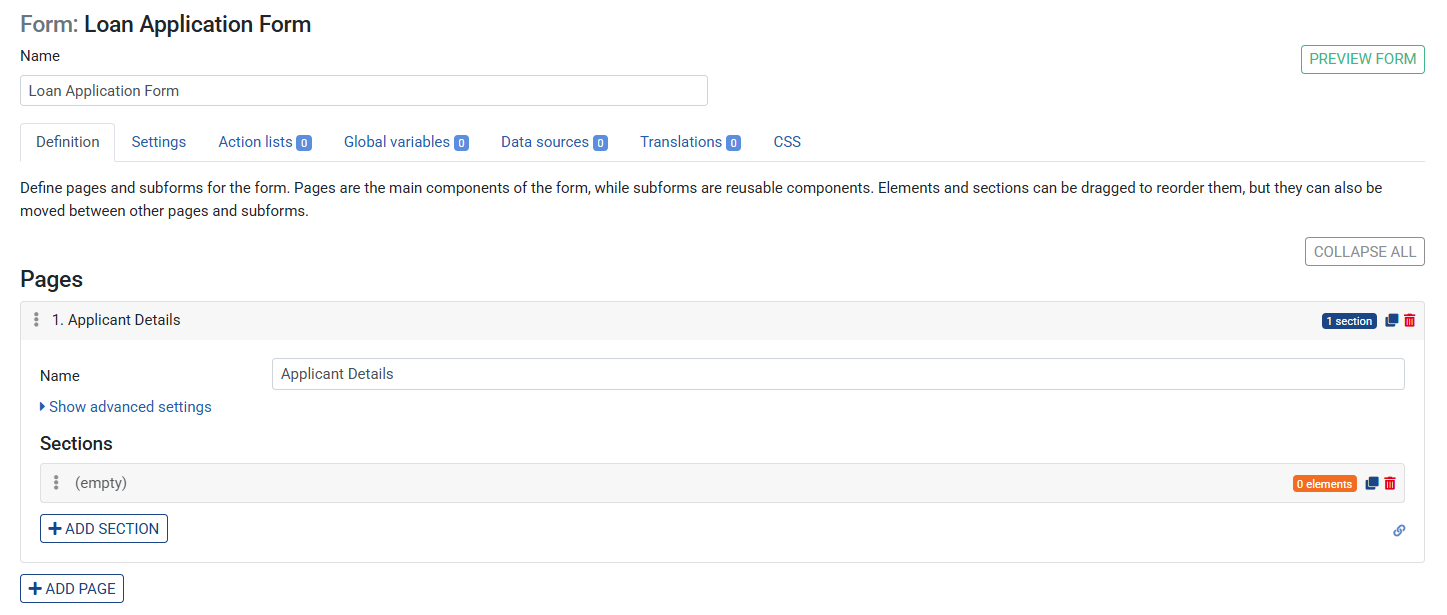
- Give the form a name, for example
Loan Application Form. - Click on the created Page element to expand it, and give it a name, for example
Applicant Details. - Add a Section to the page.
Task: Create the form inputs
Now, let's add input fields for the LoanApplicant properties.
- Click on the Section element to expand it.
- Click + Element and add an element of type Input.
- Click on the element to expand it.
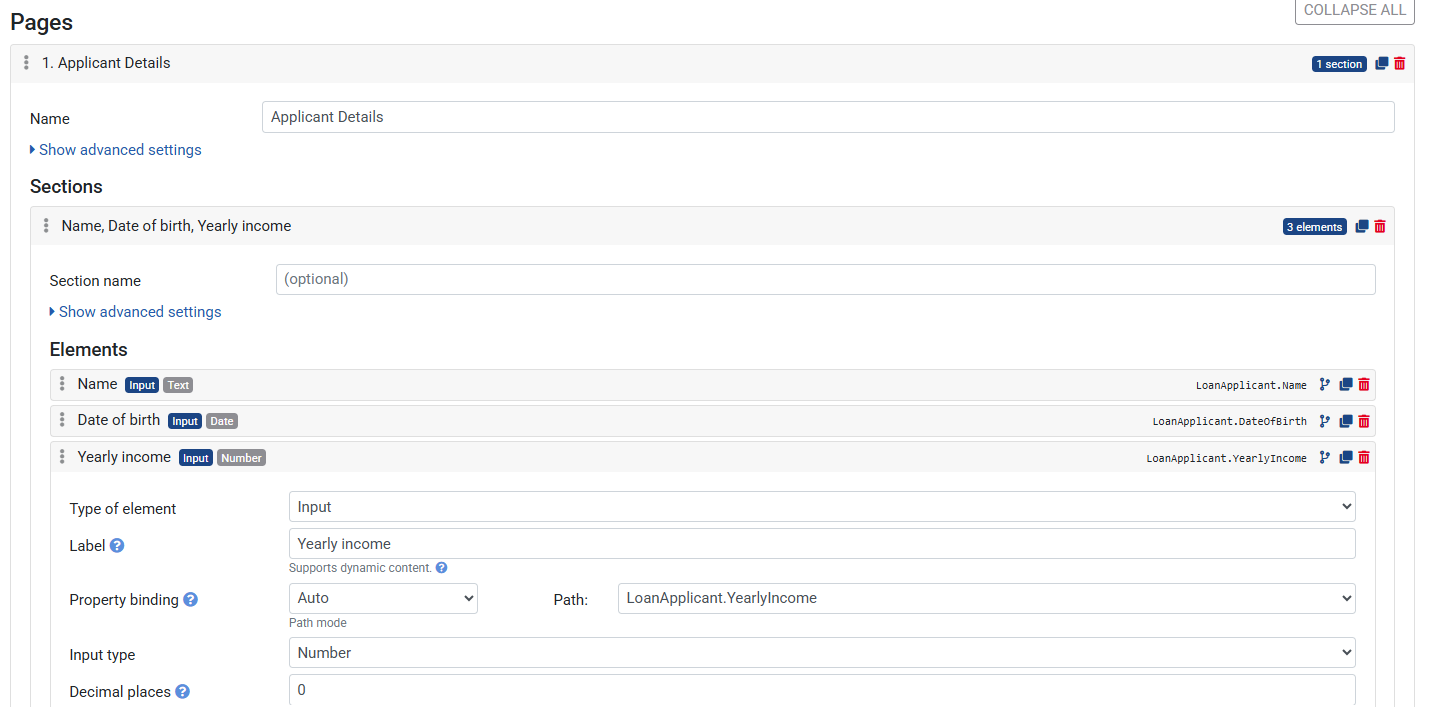
- Set its Label property to
Name. - Under Property binding, set the Path to
LoanApplicant.Name. - Set the Input type to
Text.
Now clone this element twice to create the remaining inputs.
- Click the Clone button on the far right of the element.
- Change the Label to
Date of Birth. - Change the Path to
LoanApplicant.DateOfBirth. - Change the Input type to
Date.
Clone again:
- Change the Label to
Yearly Income. - Change the Path to
LoanApplicant.YearlyIncome. - Change the Input type to
Number.
Task: Create the form outputs
Now add a second section for the calculated results.
- Click + Add section to add a new section.
- Click + Element and add an element of type Output.
- Set its Label to
Age. - Under Property binding, set the Path to
LoanApplicant.Age. - Leave the Output type as
Text.
Clone this element once:
- Change the Label to
Maximum Loan Amount. - Change the Path to
LoanApplicant.MaximumLoanAmount.
Task: Add the execute button
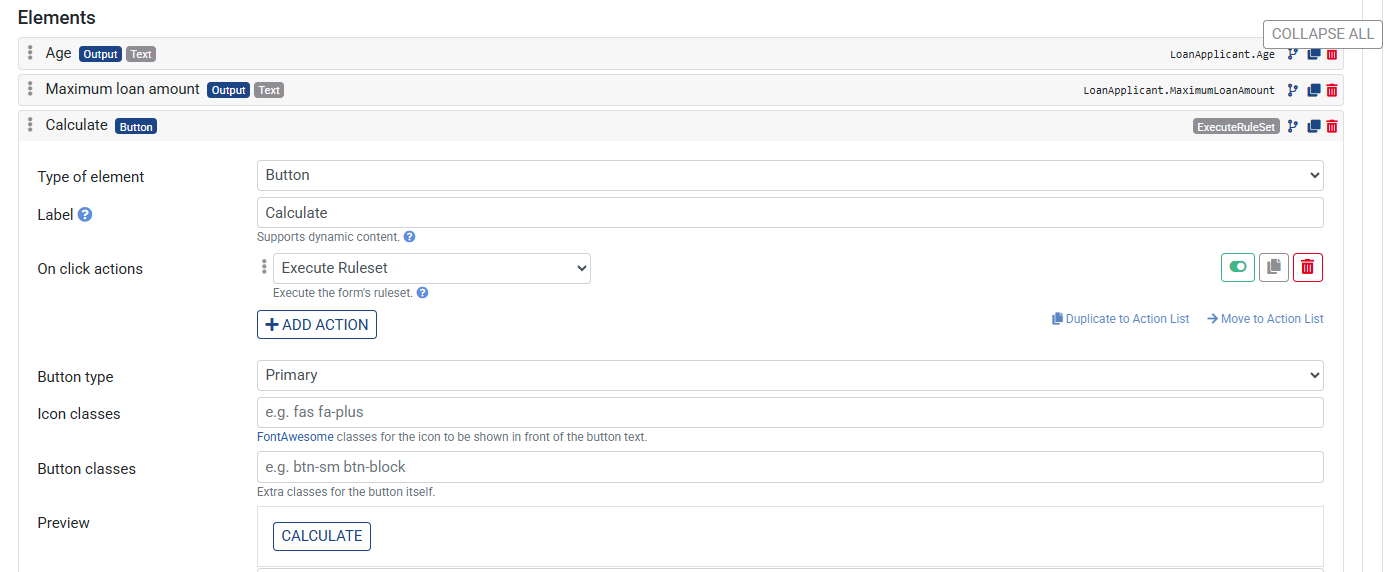
- Click on the + Element button to add an element of type Button
- Click on the element to expand it
- Set its Label property to
Calculate - Under On click actions, click on the +Add action button
- Select Execute ruleset instead of Nothing.
- Save the ruleset.
Task: Preview the form
- Click the Preview button in the top right corner.
- Fill in a name, date of birth, and yearly income.
- Click Calculate.
- The Age and Maximum Loan Amount fields should update with the calculated results.
Recap
In this tutorial, you built a Form on top of the Loan application ruleset you created in the previous tutorials.
You added input fields for the LoanApplicant properties, output fields for the calculated results, and a button to execute the ruleset — all without writing a single line of code.
What's next?
You now know how to build a no-code UI directly inside Rulecube using Forms — no external software or coding required.
In the next tutorial, you'll learn how the Rulecube API works by calling your ruleset from Postman.