v2.6
Element types
Introduction
This guide walks through the most commonly used element types in Rulecube Forms. Each element type is demonstrated with step-by-step instructions so you know exactly how to add and configure it.
If you're not yet familiar with Forms, please read Form structure first.
All elements are added the same way: open a section, click + Element, and choose the type from the list.
Common properties
Most elements share these properties:
| Property | Description |
|---|---|
| Label | Text displayed next to the element |
| Property binding → Path | Binds the element to a field in the ruleset model |
| Visibility | Always, Conditional, Conditional advanced, or Never |
| Help text | Small hint displayed below the element |
| Tooltip text | Shown when hovering the (?) icon next to the label |
| Custom CSS classes | Bootstrap 4 or your own CSS classes |
If you're not yet familiar with Ruleset Development, please read Set the Input for a Ruleset first.
Previewing the Form
After saving the ruleset, you can click on the Preview button in the top right corner to see the inputs, buttons, dialog, etc.
Input types
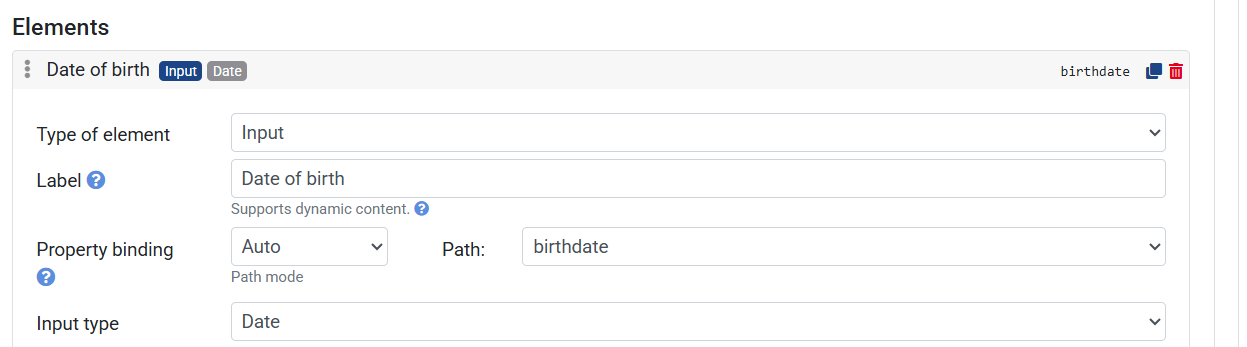
Input — Date
A date picker.
- Add an Input
birthdate, set Type todate - Click + Element and choose Input
- Expand the element
- Set the Label to
Date of birth - Under Property binding, set the Path to
birthdate - Set the Input type to
Date - Save the Ruleset
Input — Checkbox
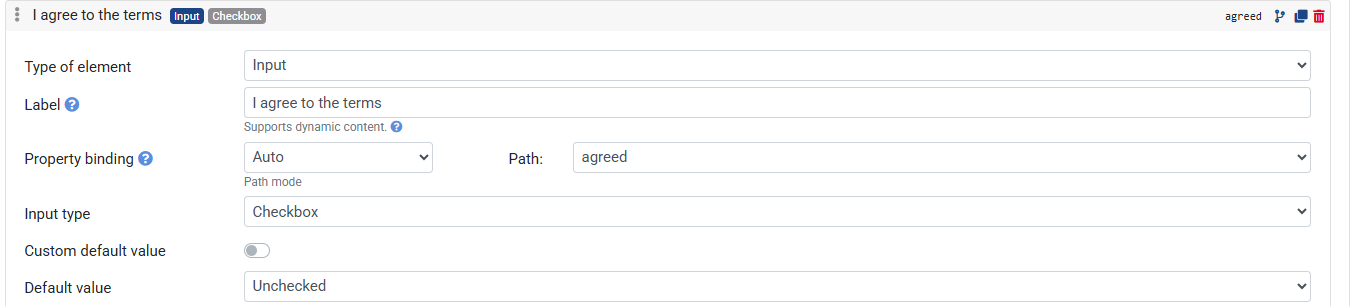
A true/false toggle.
- Add an Input
agreed, set Type toboolean - Click + Element and choose Input
- Expand the element
- Set the Label to
I agree to the terms - Under Property binding, set the Path to
agreed - Set the Input type to
Checkbox - Save the Ruleset
Input — Select
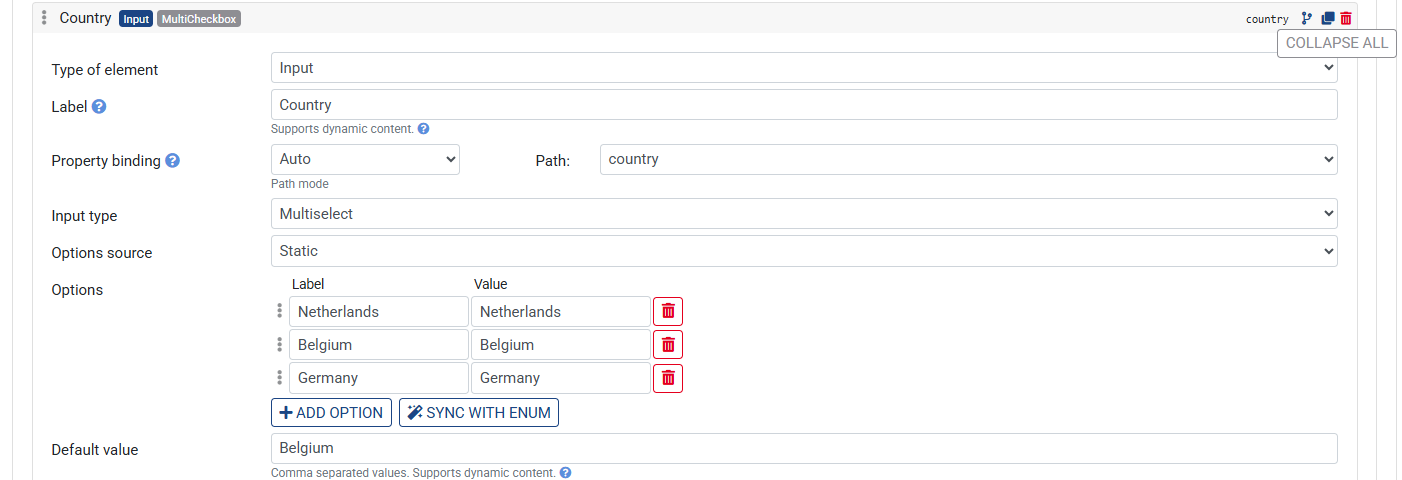
A dropdown with a fixed list of options.
- Add an Input
country, set Type toenumand addNetherlands, Belgium, Germanyas Possible values - Click + Element and choose Input
- Expand the element
- Set the Label to
Country - Under Property binding, set the Path to
country - Set the Input type to
MultiSelect - Add options under Options (e.g.
Netherlands,Belgium,Germany) - Save the Ruleset
Alert
A colored message box — can show a static message or be bound to a ruleset alert.
Static message
- Click + Element and choose Alert
- Expand the element
- Set the Alert level to
Info,Warning, orError - Set the Message to
Please fill in all required fields - Save the Ruleset

Bound to a ruleset alert
- Create an Alert, see Generate Alerts how te create one
- Click + Element and choose Alert
- Expand the element
- Set the Alert type to
Alert from Ruleset - Under Property binding, set the Path to the alert name from the ruleset
- Save the Ruleset
The alert box appears and shows the alert message only when the ruleset triggers that alert.
Collapse
A collapsible panel — hides its content until the user expands it.
Add an Entity
Alphabetwith the following input- input named
aof typestring - input named b of type
string - input named c of type
string
↳ See Entities
- input named
Click + Element and choose Collapse
Expand the element
Set the Label to Alphabet
Assign a Subform to render inside the collapse, click on +Create new subform and click on Add all base properties
Save the Ruleset

Tabs
A tab component where each tab renders a different subform.
Add an Entity
Fruitwith the following input- input named
appleof typenumber - input named
orangeof typenumber
↳ See Entities
- input named
Create a Subform using the input properties from the Entity Fruit
↳ See Working with Subform
Click + Element and choose Tabs
Expand the element
Add one or more tabs — each tab requires a Tab title and a Subform
Save the Ruleset

Dialog
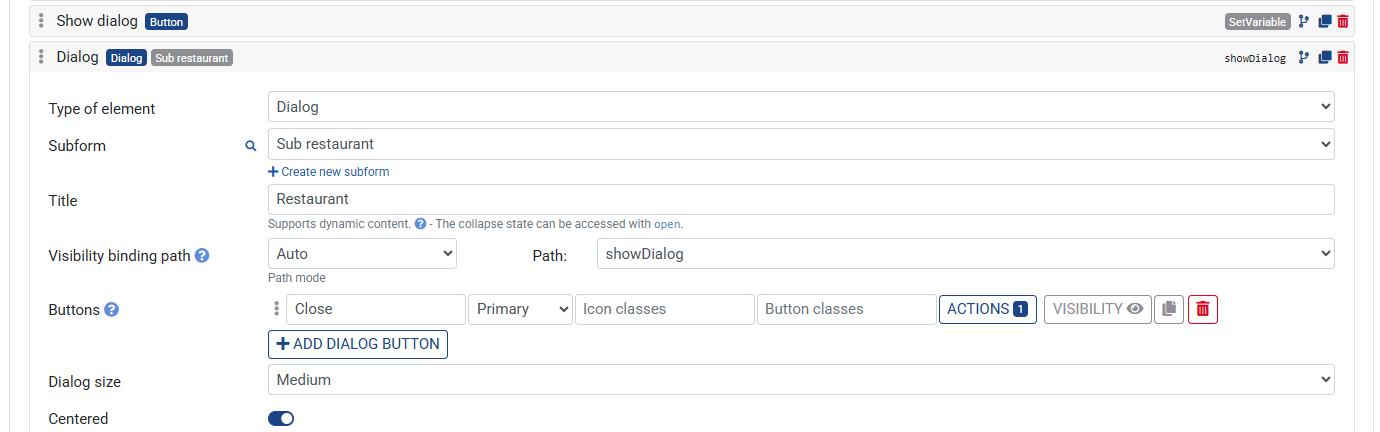
A modal dialog that appears when a bound property is true.
Add an Entity
Restaurantwith the following input- input named
foodof typestring - input named
drinkof typestring
↳ See Entities
- input named
Create a Subform using the input properties from the Entity Fruit
↳ See Working with Subform
Go to the tab Global variables
Click on +Add Variable and add
showDialogas NameGo to the tab Definition
Click on the +Element button and add an element of type Button
Add the following elements:
- Label:
Show dialog - On click actions: select
Set global variable,Path: showDialog,Value:true
- Label:
Click + Element and choose Dialog
Expand the element
Add the Title
RestaurantAssign a Subform to render inside the dialog
Under Property binding, set the Path to
showDialogClick on +Add Dialog button, add Button text
CloseSave the Ruleset
CAPTCHA
A CAPTCHA element adds bot protection to your form. When the user submits the form, they must complete the CAPTCHA challenge before the form actions are executed.
Steps:
- Add an Input
captchaVerified, set Type tostring - Add an element to a section
- Set the type to CAPTCHA
- Bind the Path to a boolean or string input in the ruleset (e.g.
captchaVerified) - Save the Ruleset
The element renders a Google reCAPTCHA widget automatically

Template
An advanced element that supports raw HTML and Vue template syntax (v-if, v-for, @click, etc.).
- Click + Element and choose Template
- Expand the element
- Write your HTML/Vue template in the Template editor
- Save the Ruleset
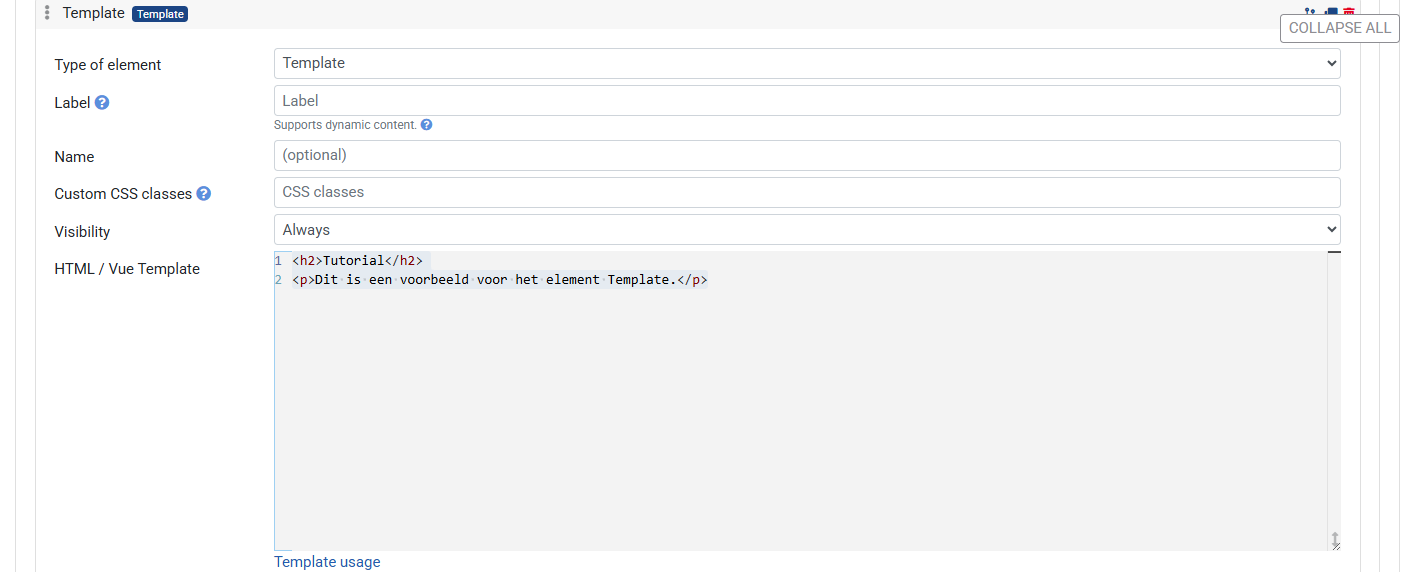
The Template element requires knowledge of HTML and Vue.js. Use it only when the built-in element types don't cover your use case.
Table
Displays a list of items from a ruleset array or data source. See Working with Data sources for a full example.