v2.6
Create a Workflow
Introduction
This guide assumes you are familiar with workflows. If not, see the Tutorial: Using Workflows.
Procedure
Let's create a workflow for the earlier-mentioned loan application process:
Step 1: Create the basic workflow
- Create a new ruleset named
LoanAssessment. - Select Version settings from the left-side menu.
- Select the Workflow checkbox.
↳ Rulecube turns the ruleset into a workflow and adds the Workflow option to the left-hand menu, and creates thestateinput and theStateentity: - Create an input named
LoanAmount- Set its Type to
number - Check the "Add to state" checkbox.
- Set its Type to
- Select the State entity and click Add property.
- In the Name field, enter
Status. - In the Type list, select string.
- In the Default value (optional) field, enter
new. - Click Save.
Step 2: Add steps to the workflow
Select Workflow from the left-side menu.
↳ Rulecube shows the Workflow canvas where you create the workflow by dragging en connecting steps.Drag a Swith step to canvas.
↳ Rulecube gives the step a default name.Select the Switch step.
↳ The Switch details section opens: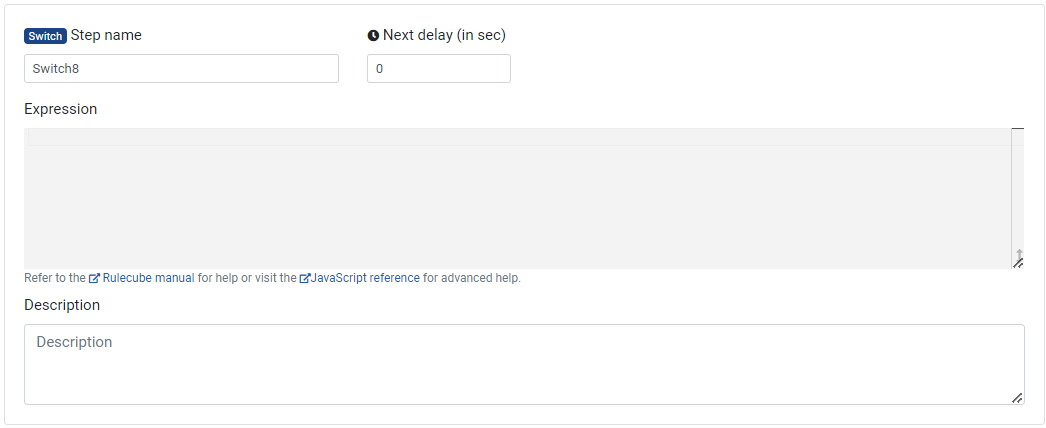
In the Step name field, enter
Assessment check.In the Description field, enter
Requested loan amount larger than 100,000?Connect the Start step to the Assessment check step by clicking on the little circle in the Start step, holding your mouse, and dropping on the left circle of the Assessment check step.
↳ Rulecube adds a dotted blue line between the steps to indicate that they are connected:Drag an Action step to the canvas and set Step name =
Assessmentand Description =Accept or reject.Drag another Action step to the canvas and set Step name =
Accept.Connect the Assessment check step to the Assessment step.
↳ Rulecube asks for a name for the connection, entertrue, and click OK.Connect the Assessment check step to the Accept step.
↳ Rulecube asks for a name for the connection, enterfalse, and click OK. And now, the Assessment check (switch) step has proceedings for whether its condition is true or false.Drag a Wait step to the canvas and set Step name =
Wait.Connect the Assessment step to the Wait step.
Drag an Action step to the canvas and set Step name =
Reject.Connect the Wait step to the Accept step and name the connection
Accept.Connect the Wait step to the Reject step and name the connection
Reject.Drag an End step to the canvas.
Connect the Accept step and the Reject step to the End step.
↳ Maybe you have to rearrange the steps, but your workflow canvas should look like this: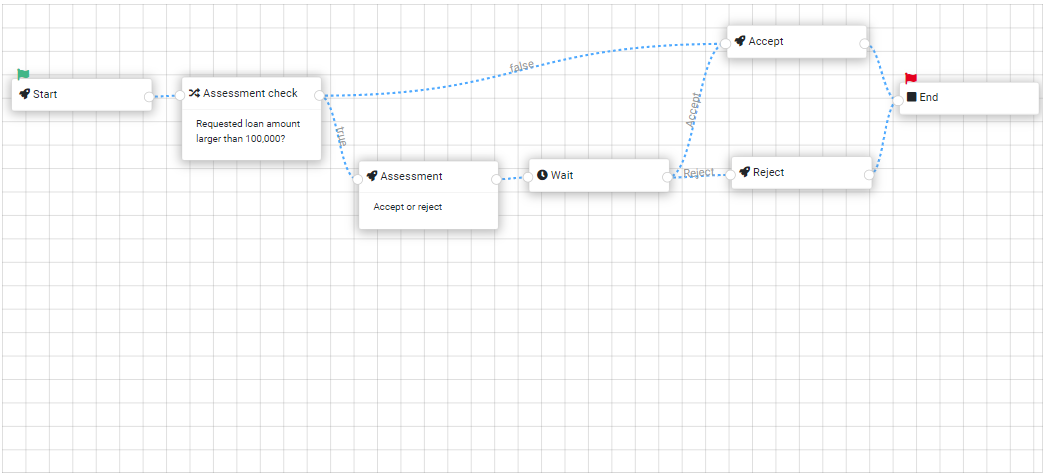
Save the workflow.
Step 3: Add processing to the steps
Select the Start step and set its Expression to the following code:
javascriptstate.LoanAmount = LoanAmount; return;Select the Assessment check step and set its Expression to the following code:
return state.LoanAmount > 100000Explanation
This code checks whether the loan amount is larger than 100,000 and results in either true or false.Select the Assessment step and set its Expression to the following code:
javascriptstate.Status = 'under review'; Workflow.createNextSignalUrl('Accept'); Workflow.createNextSignalUrl('Reject'); return;Explanation
This code sets the status and creates the possible answers or responses (signals) for the assessor.Select the Accept step and set its Expression to the following code:
javascriptstate.Status = 'accepted';Select the Reject step and set its Expression to the following code:
javascriptstate.Status = 'rejected';Save your workflow.
Step 4: Call the workflow via its API
Basically, calling a workflow works the same as calling a ruleset. Only the URL is different:
<<Your rulecube URL>>/api/workflow/startSome additional inspiration
The above procedure creates only basic signals for the assessor. In practice, you could include the signals (as URLs) in an e-mail so that the recipient can respond to them, thus completing the workflow. Then, the Expression for the Assessment step could look something like this:
javascript
let acceptUrl = Workflow.createNextSignalUrl('Accept');
let rejectUrl = Workflow.createNextSignalUrl('Reject');

let body = `Hi,
<br>
<a href="${acceptUrl}">Accept</a> or <a href="${rejectUrl}">Reject</a>`;

Mail.send({
    host: "SMTP_SERVER",
    port: 587,
    secure: false,
    auth: {

    }
}, {
    from: '"SENDER_NAME" <SENDER_EMAIL_ADDRESS>',
    to: [RECIPIENT_EMAIL_ADDRESS],
    subject: 'Loan assessment',
    html: body
})
⇨ Replace and add the values and parameters that apply to your situation.
With this, the Assessment step sends an email to the assessor. Until the assessor responds by clicking Accept or Reject in the email, the workflow waits and suspends itself. And when the assessor responds, the workflow resumes.