v2.6
Working with Actions
Introduction
Actions are the mechanism that makes a form interactive. They are executed in response to user interactions or form lifecycle events — such as clicking a button, changing an input value, or loading the form.
Actions can be configured on:
- Buttons — under On click actions
- Input elements — under On change actions
- The Form itself — under On form loaded actions
Multiple actions can be chained together and are executed in sequence.
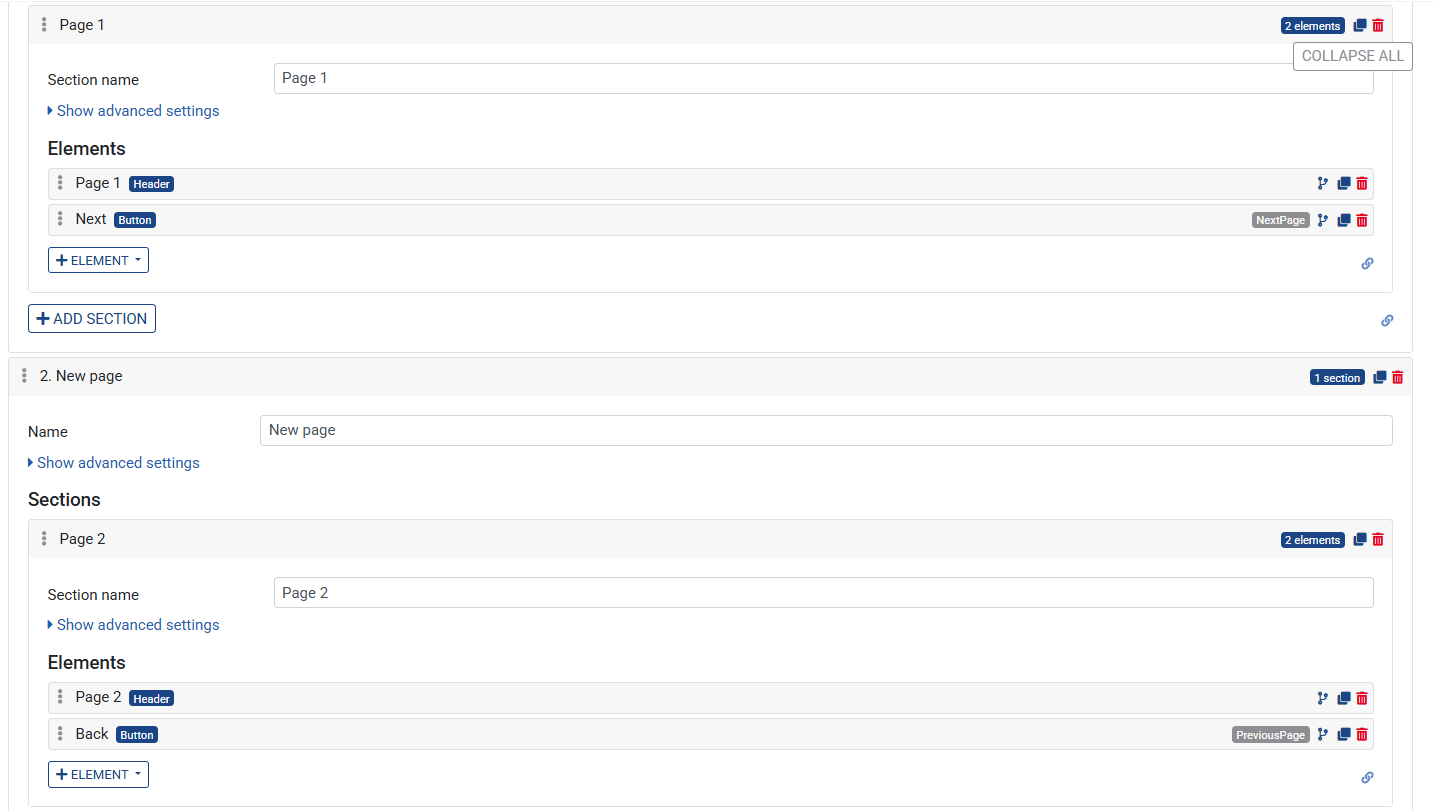
Example 1: On click actions > navigate to the next page on button click
- In the left menu, click the + next to Forms
- Give the form a name, for example
Actions - Click on the created Page element to expand it
- Add a section to the page
- Click on the Section element to expand it
- Click on the + Element button and add an element of type Header > Label: Page 1
- Click on the + Element button and add an element of type Button
- Sets its Label to
Next - Under On click actions, click + → select Next page
- Add a second page with:
- add an element of type Header > Label: Page 2
- add an element of type Button
- Sets its Label to
Back - Under On click actions, click + → select Previous page
- Save the Ruleset
Previewing the Form
- Click the Preview button in the top right corner
Example 2: On form loaded actions > Show a toast message
Use On form loaded actions to set a default value when the form opens.
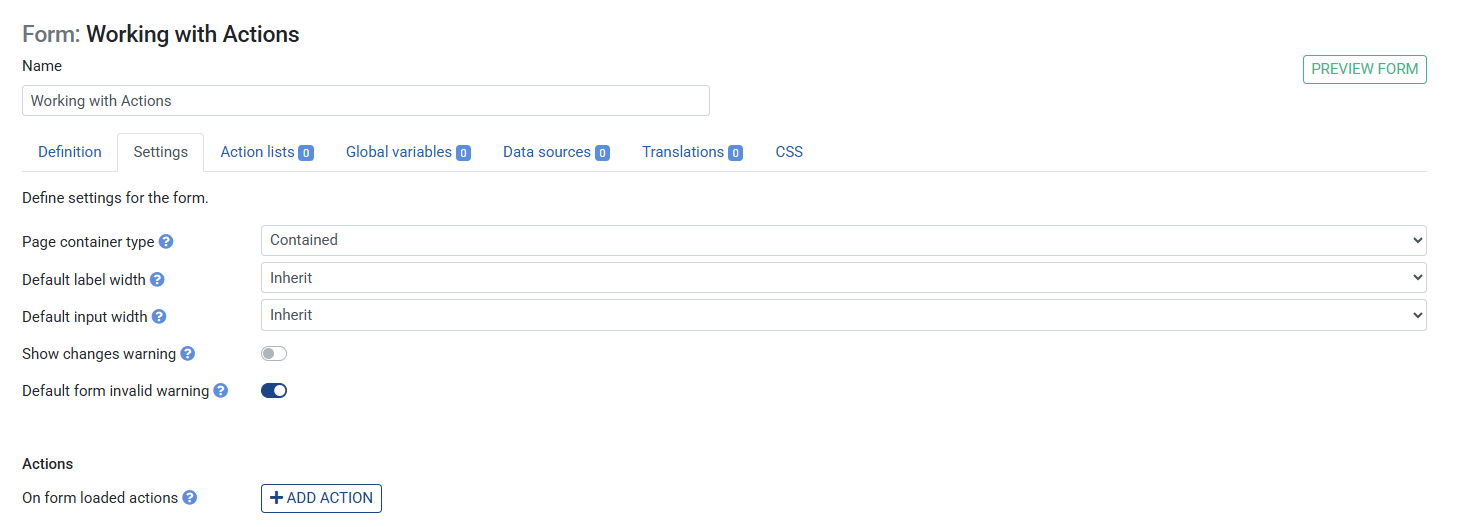
- Click the Form settings (top level)
- Under On form loaded actions, click +
- Select Show toast message
- Set Message to
Welcome - Save the Ruleset
- Click the Preview button in the top right corner to see the message
Example 3: On change actions > Recalculate on input change
Use On change actions on an Input element to automatically trigger a recalculation whenever the user changes a value — no button required. This is ideal for live, reactive forms where the output should always reflect the current input.
Prerequisite: A Calculator ruleset with inputs a (Number) and b (Number), and a rule sum = a + b. A form with two Input elements (bound to a and b) and one Output element (bound to sum).
The basic setup — adding a Calculate button that runs the ruleset — is already covered in detail in Create a Form. If you haven't done that yet, start there.
Adding On change actions to an Input element
- Open your form and click the First input element (bound to
a) to expand it - Scroll down to On change actions and click +
- Select Execute Ruleset
- Repeat steps 1–3 for the Second input element (bound to
b) - Save the Ruleset
Previewing the Form
- Click the Preview button in the top right corner
When you type a value in either input field, the sum output updates immediately — without clicking a button.
Conditional recalculation with Set property
You can also use On change actions to reset a downstream field when an upstream value changes. For example, when the user changes input a, clear the value of b first:
- Click the First input element (bound to
a) - Under On change actions, click + → select Set global variable
- Set Path to
b - Set Value to
0 - Add a second action → Execute Ruleset
- Save the Ruleset

Previewing the Form
- Click the Preview button in the top right corner
Now when a changes, b is reset before the ruleset recalculates. This prevents stale combinations.