v2.6
Form Settings
Form Settings are top-level configuration options that apply to the entire form — not to individual pages or elements. You can access them by clicking the form name (top level) in the left panel of the form editor.
Overview of settings
| Setting | Description |
|---|---|
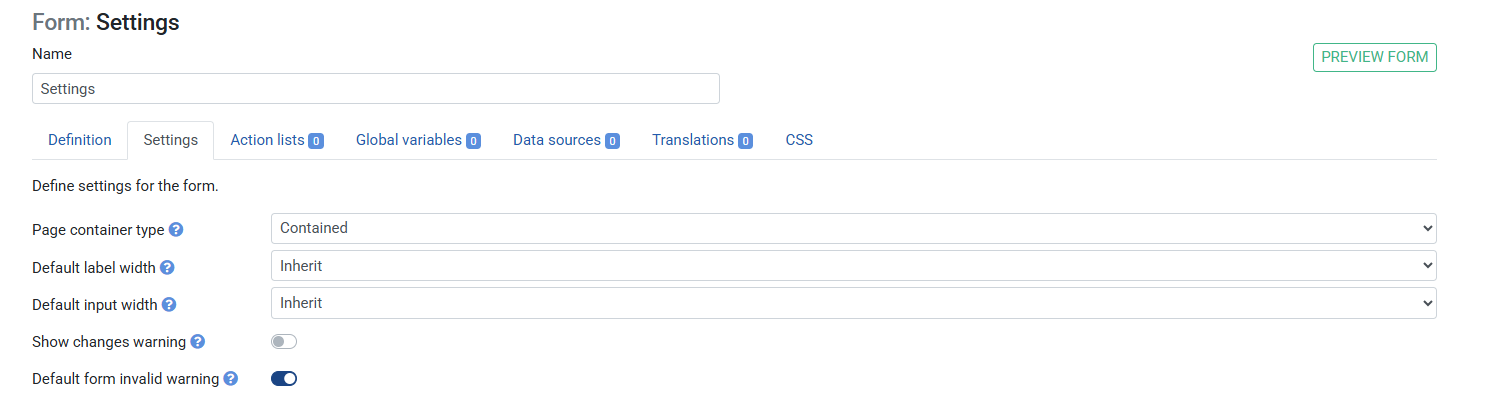
| Page container type | Controls the width of the form. Contained (default) centres the form with a max-width. Full width stretches it to fill the browser window. |
| Show changes warning | When enabled, warns the user if they try to leave the page with unsaved changes (dirty flag). |
| On form loaded actions | A list of actions that run automatically when the form first loads. |
| PDF settings | Options that control how the form is rendered when exported to PDF. |
Page container type
Use this setting to control the layout width of your form.
- Contained (default) — wraps the form in a centred container with a maximum width. Suitable for most forms.
- Full width — the form stretches to fill the entire browser window. Useful for forms with wide tables or charts.
How to change:
- Add a new Form to the Ruleset
- Go to tab Settings
- Under Page container type, select
ContainedorFull width - Save the Ruleset
- Click Preview at the top to see difference between Contained and Full widt
Show changes warning (dirty flag)
When this setting is enabled, the form tracks whether the user has made any changes since the form loaded or was last saved. This is called the dirty flag.
If the user tries to navigate away or close the tab while the dirty flag is set, they will see a browser warning: "Leave site? Changes you made may not be saved."
How to enable:
- Go to tab Settings
- Toggle Show changes warning on
- Save the Ruleset
Resetting the dirty flag
After a successful save or submit action, you typically want to clear the dirty flag so the user is no longer warned. Use the Remove form dirty flag action for this.
Example — clear dirty flag after saving:
- Go to te tab Definition
- Add a Button element with label
Save - Under On click actions, add
Execute ruleset(to save data) - Add a second action:
Remove form dirty flag - Save the Ruleset
Now, after the user clicks Save and the ruleset executes, the dirty flag is cleared and the warning will not appear until they make further changes.
On form loaded actions
Actions listed here run automatically when the form is first loaded — before the user interacts with anything. Use this to pre-populate fields, show a welcome message, load data, or set default values.
How to add:
- Go to tab Settings
- Under On form loaded actions, click
+ - Select the action type (e.g.
Execute ruleset,Set variable,Show toast message) - Configure the action
- Save the Ruleset
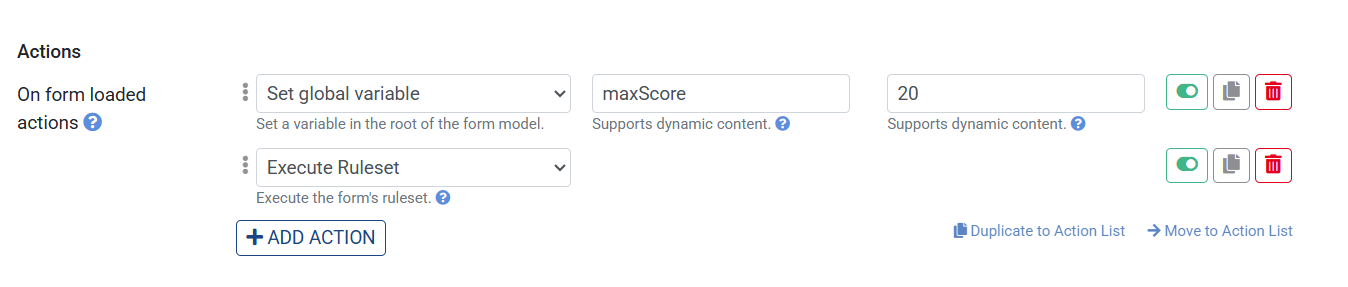
Example — show a welcome toast on load:
- Go to tab Settings
- Under On form loaded actions, click
+ - Select
Show toast message - Set Message to
Welcome! - Save and click Preview
The toast appears immediately when the form loads.
Tip: On form loaded actions run in sequence, just like On click and On change actions. You can chain multiple actions — for example, execute a ruleset first to fetch data, then set a property based on the result.
PDF settings
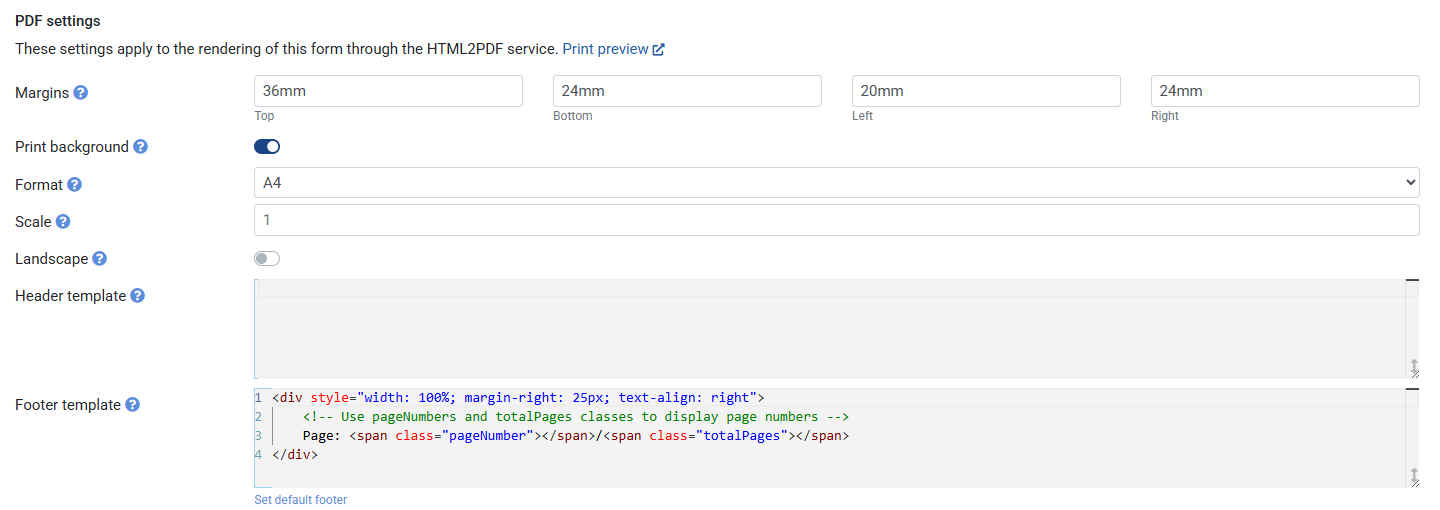
These settings control how the form looks when rendered as a PDF (via PDF.renderForm()). They configure the paper layout, margins, and custom header/footer HTML.
| Setting | Description | Default |
|---|---|---|
| Format | Paper size | A4 |
| Landscape | Portrait or landscape orientation | Portrait (off) |
| Scale | Zoom level of the rendered page (0.1–2) | 1 |
| Margin top / right / bottom / left | Page margins (numbers or CSS units like 1cm, 10px) | 30 / 35 / 70 / 25 |
| Header template | HTML for the page header (printed on every page) | — |
| Footer template | HTML for the page footer (printed on every page) | — |
Header and footer templates
Header and footer templates are HTML strings. Use the following CSS classes to inject dynamic print values:
| Class | Value injected |
|---|---|
date | Formatted print date |
title | Document title |
url | Document URL |
pageNumber | Current page number |
totalPages | Total number of pages |
Example — create a PDF:
- Go to tab Settings
- Click on
Set default footerunder Footer template (default code for page number appears) - Go to tab Definition
- Click on the + Element button and add an element of type Header
- Set its Label to
Print - Click on the + Element button and add an element of type Button
- Set its Label to
PDF - On click actions: select
Print form to PDFand select thecurrent form
- Set its Label to
- Save the Ruleset
- Click on Preview
- Click on the PDF button